
[🛠] Operations Automation #3: Migrating Legacy Leave Automation to a NAS and Connecting It to External HTTPS
✨ GPT-5.6 Sol’s Summary
A record of moving the existing leave-promotion features and data to a new NAS environment, then fixing UI defects revealed on a real mobile device after connecting external HTTPS.
I brought the features and data from the legacy leave automation service into a new NAS environment and connected the path that lets external HTTPS requests reach the application inside the NAS. This was not simply a matter of starting a container. It was about moving an existing operational workflow into a new environment.
But seeing the new screen load was not enough to call the migration complete. Employee and leave data had to appear, and the promotion targets and message wording had to match the old system. Messages beyond the daily limit of 130 had to roll over to the next day, while the send queue and history also had to carry over. If even one part was missing, it would be a different service with only the name preserved.
When I previously separated sales automation from employee administration again, I decided to reproduce the existing leave-promotion features before moving them. Once I began, that order turned out to matter even more. I postponed the NAS deployment for a while.
Reproducing local functionality and restoring data
I first ran FastAPI, Next.js, and MariaDB in an isolated local Compose environment. To avoid conflicts with the existing service, I separated the ports, network, volumes, and credentials as well. After signing in as an administrator and opening the employee and leave data, I compared the promotion targets, generated wording, reservations beyond the 130-message limit, queue, and history against the existing flow.
I did not want to touch the production DB directly. I restored the existing SQL backup into a separate MariaDB instance, then compared the schema and the counts of key tables. I also checked that the data remained after restarting the backend. Only then did I have a local behavioral baseline. If something later failed on the NAS, I could distinguish a code difference from a bad image or network configuration.
Restoring the backup did not mean the production transition was complete. The administrator account, work phone, and real text messages had not yet passed through the new path.
Two layers of limits on the real SMS delivery path
The next obstacle was real SMS delivery. Without sending a message, I could not inspect the entire path through to the Android work phone. But I also could not leave production sending enabled just for a test.
So I divided the server’s send mode into three options.
NO_SEND
ALLOWLIST_SEND
PRODUCTION
The normal state is NO_SEND. Only during a test did I place one approved recipient in ALLOWLIST_SEND. I matched the recipient using a SHA-256 hash instead of storing the phone number in plaintext, and limited the server to claiming one message. I also added a separate one-message budget inside the Android app. I wanted to ensure that mishandling either the server or the app could not send a second message.
I did not validate this state by reading code alone. With Computer Use, I opened the actual administration screen and checked NO_SEND, the number of messages currently available to claim, the queue, and the history. On the same screen, I compared the Codex work result with the implementation code.
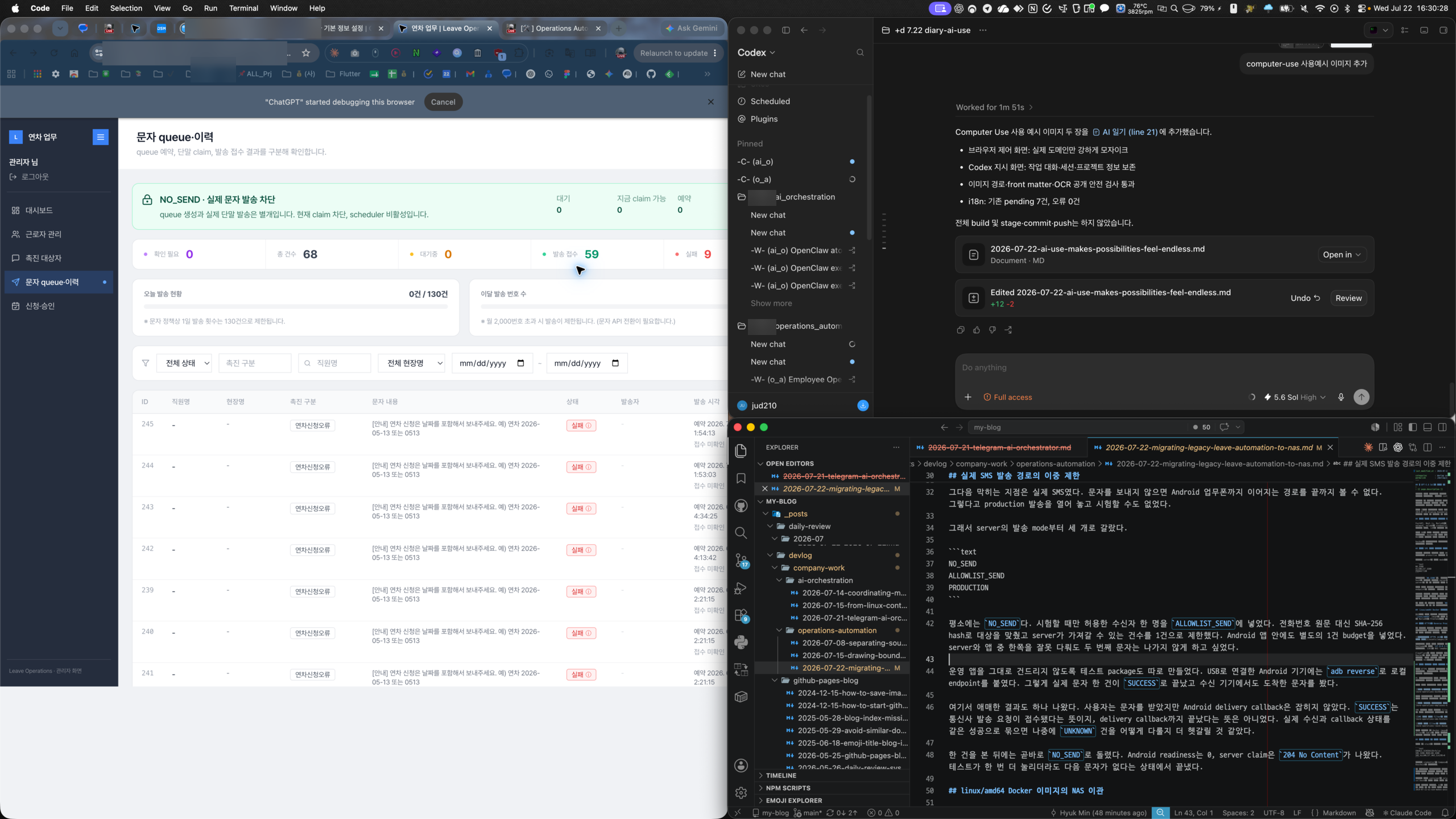
I also created a separate test package so I would not touch the production app directly. On an Android device connected by USB, I used adb reverse to connect it to the local endpoint. One real message then finished as SUCCESS, and I saw it arrive on the receiving device.
There was one ambiguous result. The user received the message, but the Android delivery callback was not captured. SUCCESS meant the carrier had accepted the send request; it did not mean the delivery callback had completed. If actual receipt and callback status were treated as the same success, deciding how to handle UNKNOWN cases later would become even more confusing.
After observing one message, I immediately returned the system to NO_SEND. Android readiness was 0, and the server claim returned 204 No Content. I ended the test in a state where an accidental extra action could not send another message.
Migrating linux/amd64 Docker images to the NAS
I deployed only the leave automation service to the NAS, not the entire automation platform. Instead of rebuilding the source on the NAS, I created linux/amd64 images on the Mac, verified their hashes, and transferred them. I also separated the Compose project from the existing stack. This prevented replacing a single backend from recreating MariaDB and the Frontend at the same time.
Connecting external HTTPS and the Reverse Proxy
The login screen opened at the new address, and the existing employee and leave data appeared. But a written explanation alone did not make it easy to see how requests from an external browser reached MariaDB. In particular, I kept blurring whether 3101 was an Internet-facing port or a port used only inside the NAS. I put the request path into a diagram.
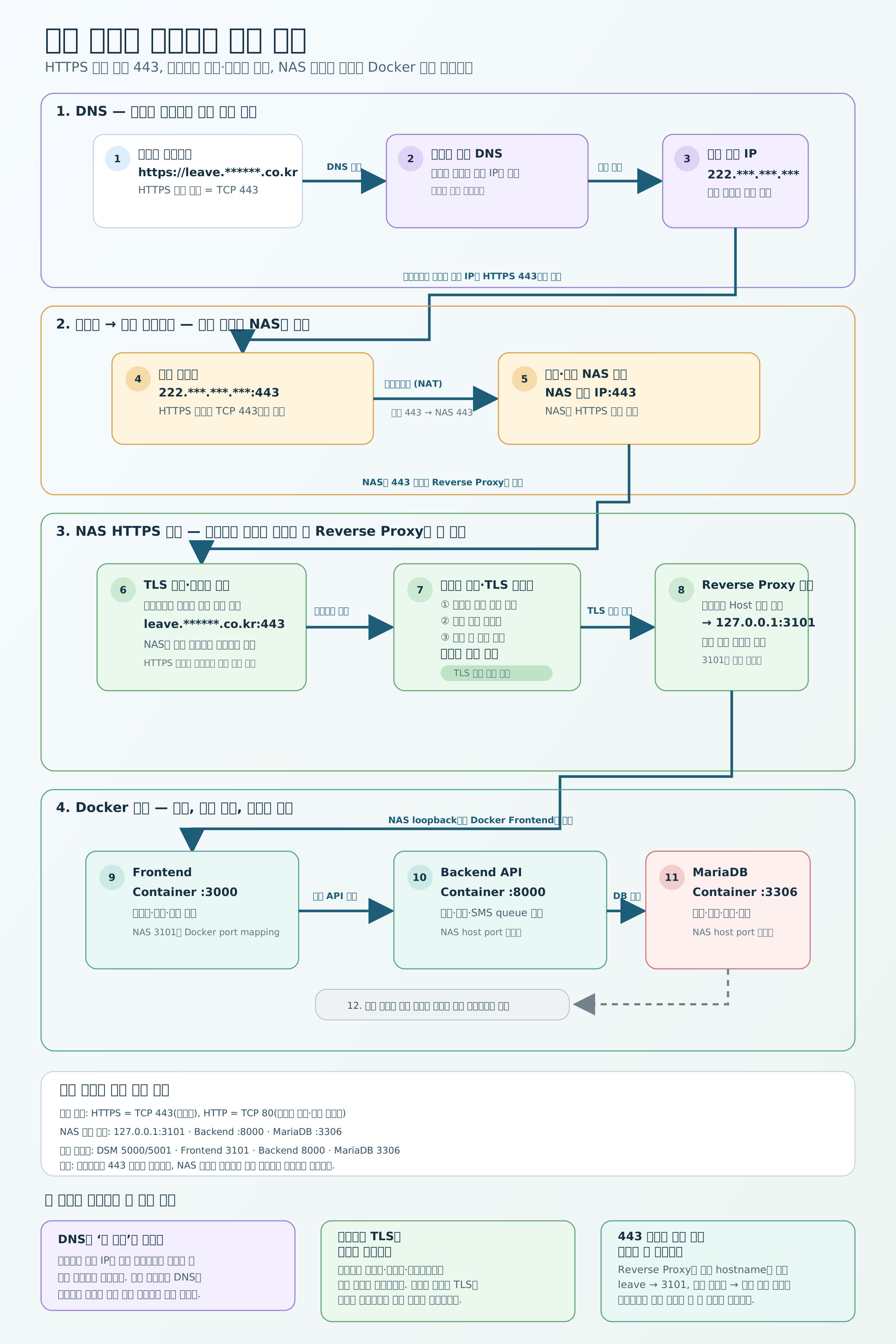
Once diagrammed, it became clear that the only external requirement was HTTPS 443. The router forwards 443 to the NAS, and the NAS reverse proxy checks the hostname and sends the request to the Frontend at 127.0.0.1:3101. Backend 8000 and MariaDB 3306 communicate only within the Docker network. Because 3101 is also bound only to NAS loopback, it cannot be reached directly from the Internet.
I left Cloudflare out of the default path for the same reason. I already had authoritative DNS, a fixed public IP, and direct control of the router. Adding only the service A record and managing the certificate on the NAS removed one intermediate component. The tradeoff is that I must manage certificate renewal and port forwarding myself. Apart from port 80 for certificate issuance and renewal, actual service requests arrive only through 443.
Verifying on a real mobile device and fixing the responsive UI
The migration was not complete just because the external HTTPS address opened. On a real Android device connected by USB, I accessed the new address over the mobile network and walked through sign-in, the dashboard, employee list, SMS history, and leave management. The screens loaded, but they were not usable as they were.
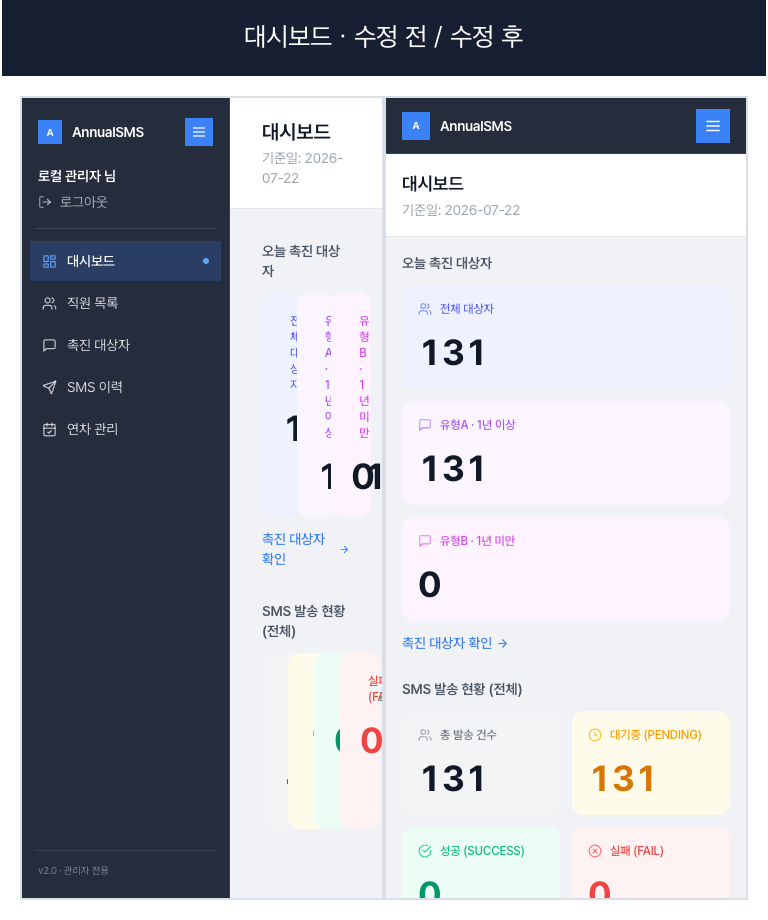
Problems that I had missed by merely narrowing a desktop browser appeared all at once on the real device. On the dashboard, the desktop sidebar occupied most of the screen, squeezing the cards and text into narrow vertical columns.
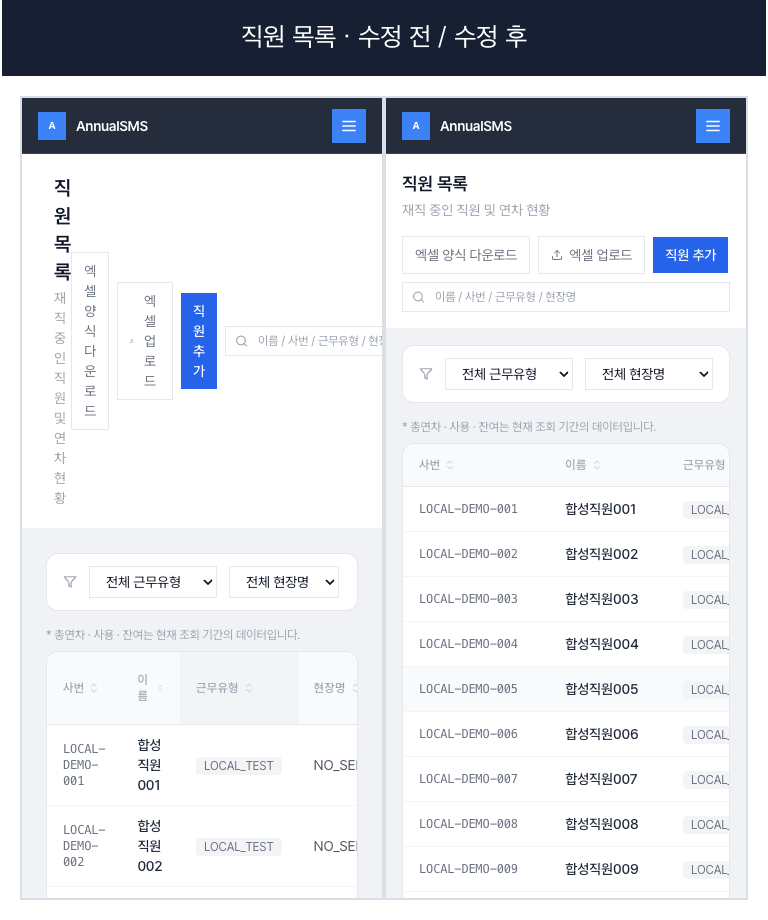
In every comparison below, the left side is before the fix and the right side is after it.
In the employee list, headings and buttons broke one character at a time, while a wide table was forced into a narrow viewport. I kept the heading and action area flowing horizontally, then allowed the table to scroll as far as needed instead of crushing its contents.
The filters in SMS history and leave management had the same problem. Several inputs and a date range were being forced onto one line. On a small screen, I arranged the fields primarily in two columns and moved the date range to a separate row so each control could be read and tapped.
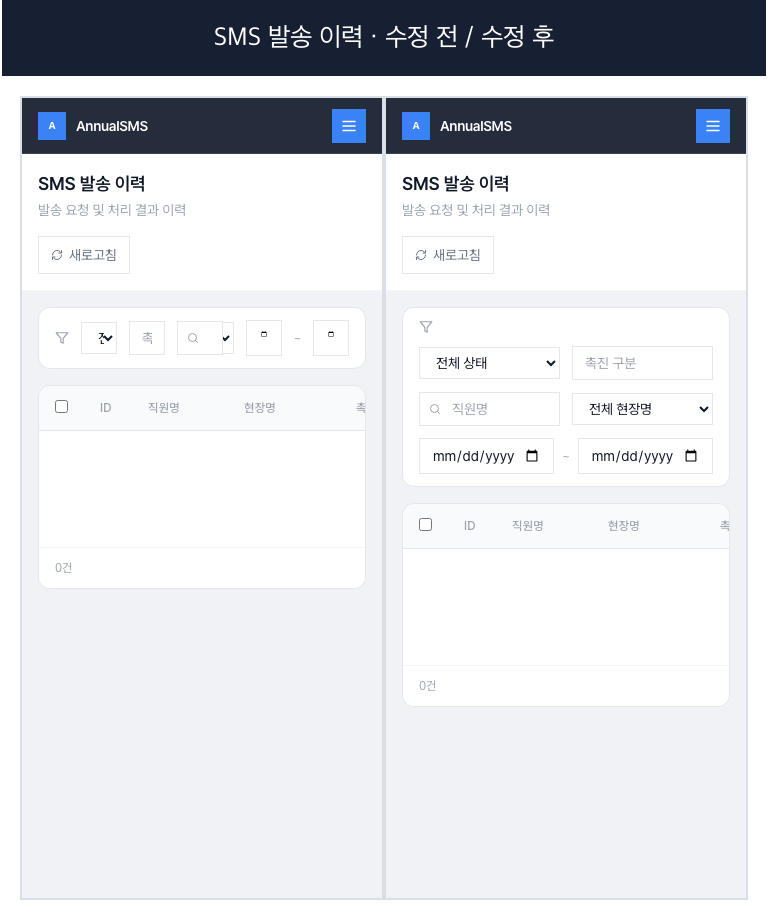
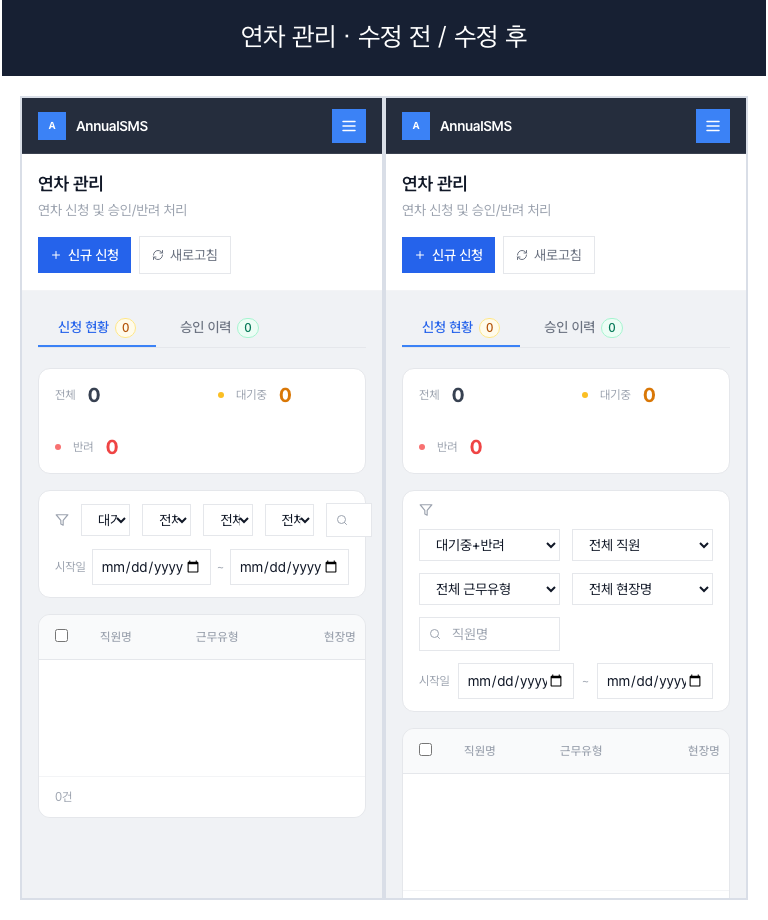
After the fixes, I deployed a new Docker image and signed in again on the same phone. I opened the menu, scrolled through the screens, and directly checked each filter and table to see whether the defects I had first observed were gone. What began as a check that the external network could reach the container on the NAS turned into fixing the actual interface people would use.
Migration stages and administrator UI/E2E verification
After connecting the NAS migration, external access, and one internal text message, I unfolded the full roadmap again and saw that stages 1 through 3 were behind me. The current position was stage 4: deploying the improved administrator UI as a new image and reviewing every page again through ADB and the real device.
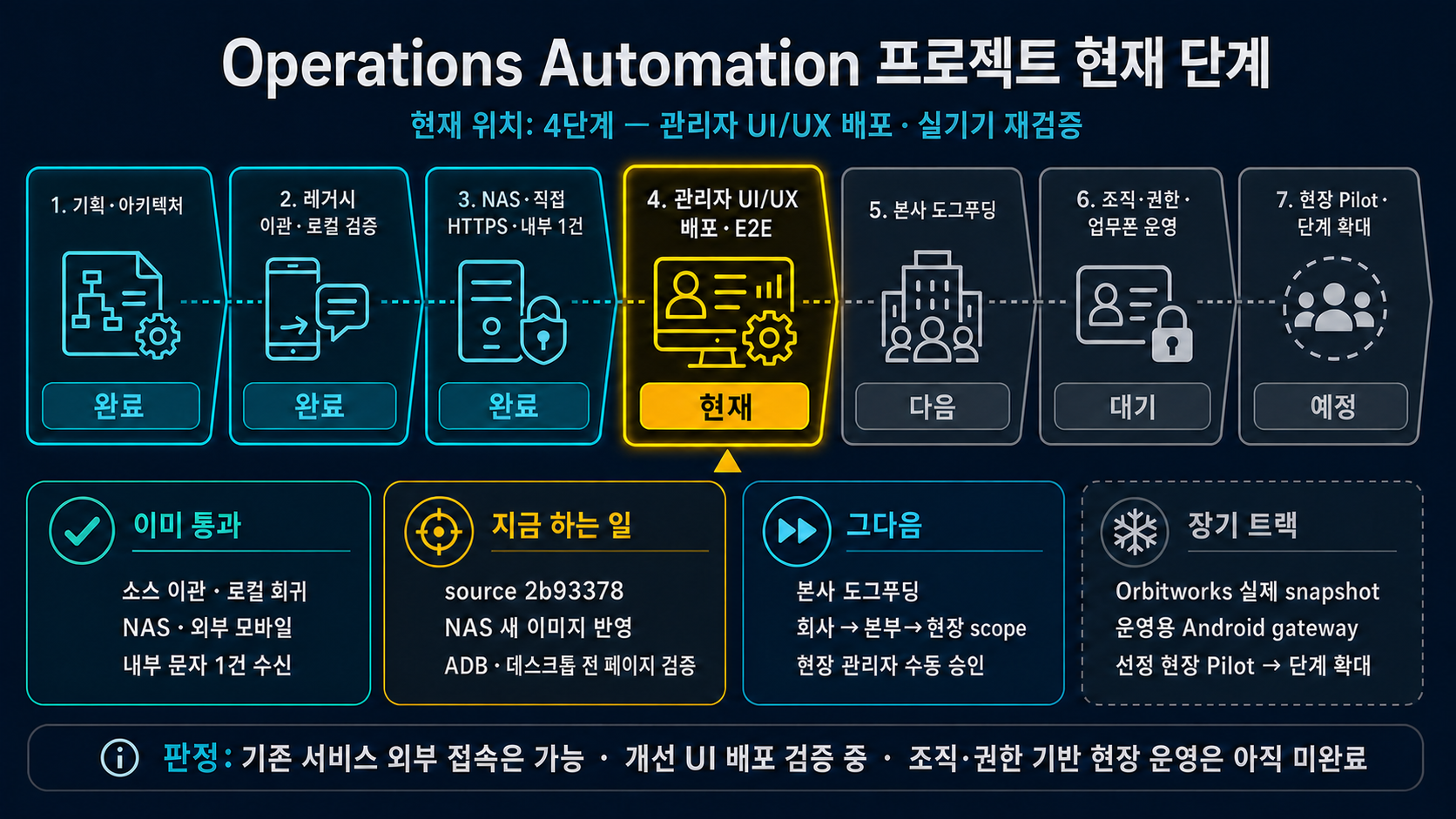
Putting this diagram beside the work also clarified the next boundary. External access itself had already passed, but headquarters dogfooding could not begin until the administrator screens had been reverified on a real device. So the next step was not adding more features. It was checking the corrected UI end to end to ensure the same workflow held on both desktop and mobile.
Safe state and rollback before the production transition
For now, the new stack is deliberately configured to do nothing automatically.
ENABLE_SCHEDULER=False
SMS_SEND_MODE=NO_SEND
SMS_ALLOWLIST_MAX_CLAIMS=0
I did not place administrator credentials in Compose or the images. On the NAS, I supplied them through a secret file with 0600 permissions; on the Mac, I kept them in Keychain.
I could sign in at the new address and read the data, and under limited conditions one text message also arrived. Over an external mobile network, I verified everything from sign-in through data lookup and screen interaction. Even so, I could not remove the existing leave-message service until I had defined a recovery method for cases with no delivery callback and received approval for the actual sending conditions.
So I stopped the existing containers and volumes but left them intact. What I need next is not more configuration. I need to decide how to recover sends without a callback and then enable real sending for a limited number of messages under approved conditions.
Separate from the technical migration, I wrote about what changed for me when AI could look at the real phone and the router and NAS administration screens alongside me in When You Know How to Use AI Actively, the Things You Can Do Feel Endless.
Leave a comment