
[🤖] Knowing How to Use AI Actively Makes the Possibilities Feel Endless
✨ GPT-5.6 Sol’s Summary
A record of connecting a NAS, router, and HTTPS, then fixing broken UI on a phone attached over USB—and realizing how much wider the range of things I can handle becomes when I work with AI.
I Looked at the NAS and Router Screens Together Through Computer Use
The first things I ran into today were the NAS and router.
Running Docker alone was not enough to make the service available outside. The domain had to find its way to the company internet, the router had to pass the request to the NAS, the NAS had to present the certificate, and then the Reverse Proxy had to send it to the internal container. Before, I would have started by hunting for manuals while switching back and forth between the router and NAS admin screens.
This time, I logged into the admin screens and approved the scope of the changes, while AI looked at the actual screens through Computer Use and worked through them with me.
A notice appeared above the browser saying that AI had started debugging it directly. I handed over the screen exactly as I was seeing it, and we checked together what was working and where it was stuck.
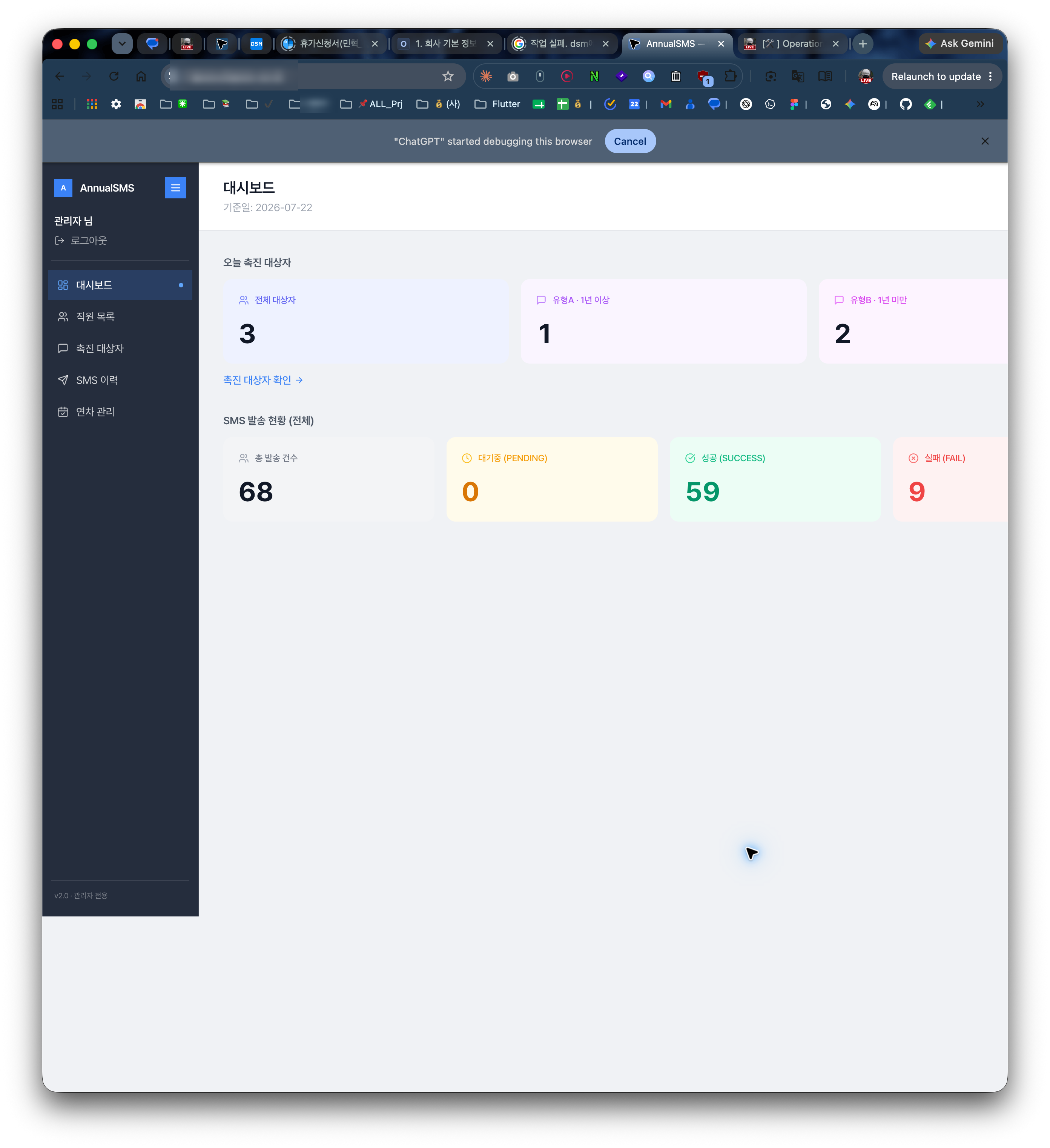
We checked the existing settings first, left the homepage and mail connections that must not be disturbed alone, and added only what the new service needed. I uploaded the Docker image built on my Mac to the NAS, ran it in a separate Compose environment, and connected the Reverse Proxy and HTTPS certificate.
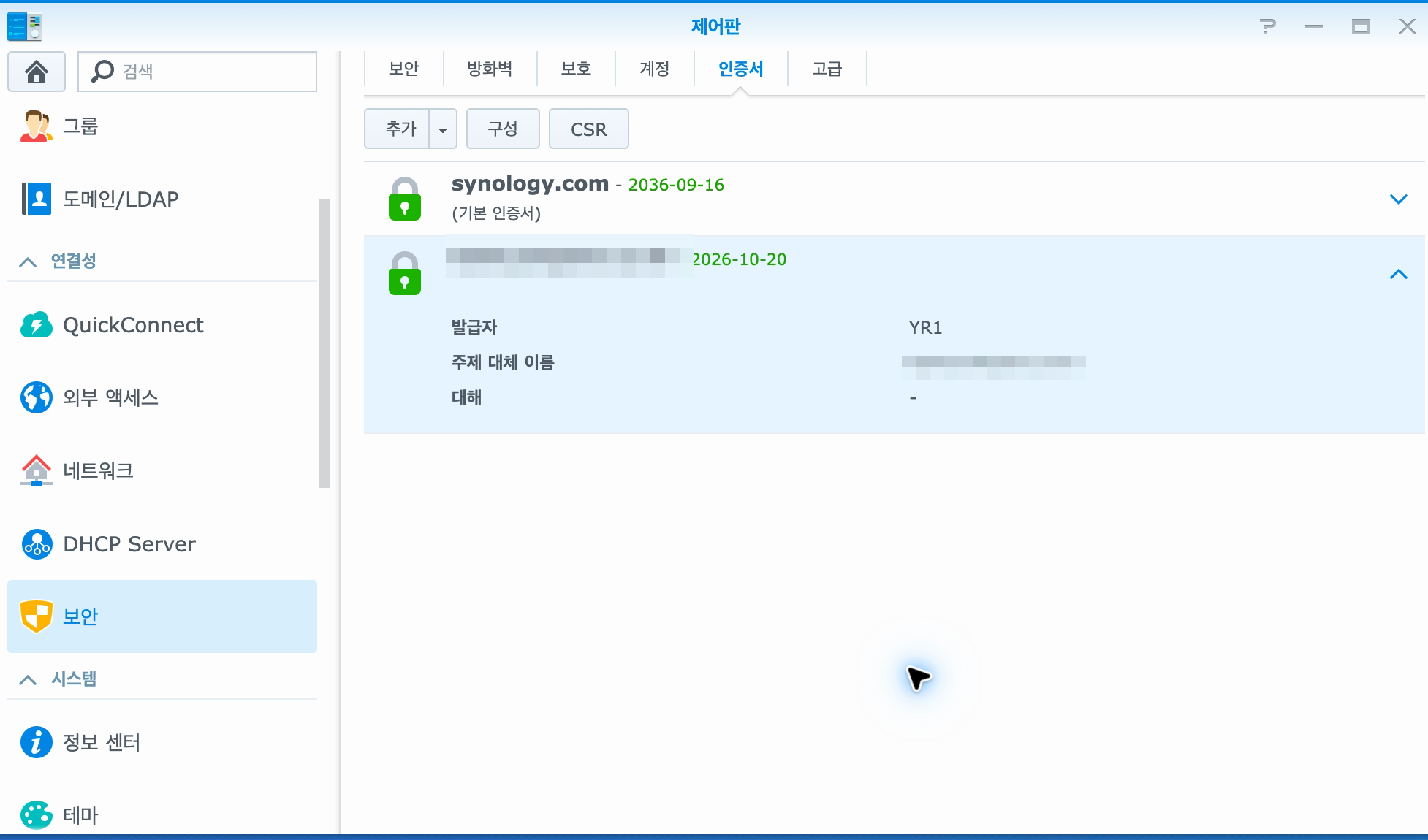
The division of roles became even clearer here. I handled login, setting the goal, deciding how much of the existing environment had to be preserved, and approving the actual changes. Inside the screens I had opened, AI read the router and NAS settings and connected several technical layers—from Docker and the Reverse Proxy to the certificate.
AI did not change external settings however it pleased. I handled login and approval for important changes, and we checked the result one step at a time while leaving a way to restore the existing environment. For the real SMS send, we first limited it to one approved internal number and confirmed receipt. After finishing the external connection, I also opened the HTTPS address over the phone’s mobile network.
I wrote separately about moving the existing functions and data, verifying one limited SMS, and the path by which an external request reaches the service inside the NAS in Migrating Legacy Leave Automation to a NAS and Connecting External HTTPS.
Could It Look at the Phone Screen Directly?
After getting this far, I asked AI:
Can’t you look at my phone screen and control it yourself? Isn’t there a tool for that?
In a world where even Android virtualization exists, it felt strange that AI could not see one real phone connected over USB. I found out that adb could read and control the phone’s state, and that scrcpy could display the actual screen directly on my Mac.
After a few exchanges, my real phone screen actually appeared on the Mac.
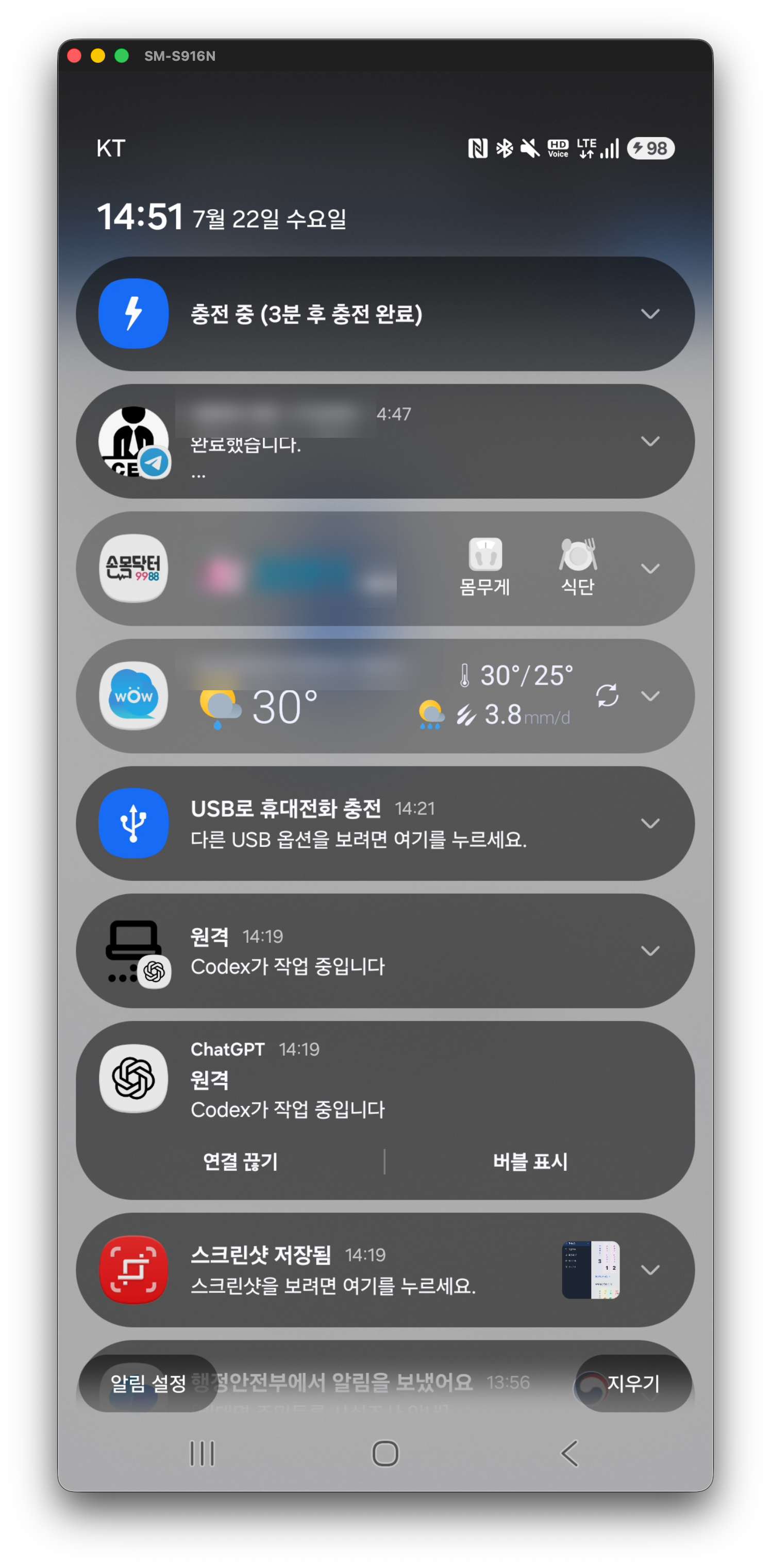
My phone was sitting right there inside the Mac screen, even showing a notification that Codex was working. From then on, AI no longer felt like just a window that answered questions. It felt like a tool that could look at the real devices I could see and touch together with me.
I Fixed the UI While Looking at the Real Phone
scrcpy did not end with merely displaying the phone screen.
Once I connected a real phone with USB debugging enabled, AI could use adb to capture the screen, read the UI structure, tap, scroll, and enter text. Through scrcpy, I watched the whole process live. It was not a matter of choosing one or the other: I watched the screen through scrcpy, while adb handled repeated operations and evidence capture.
On the monitor, AI was reading the screen and organizing the next action. Right in front of it, the same service was open on the real phone.
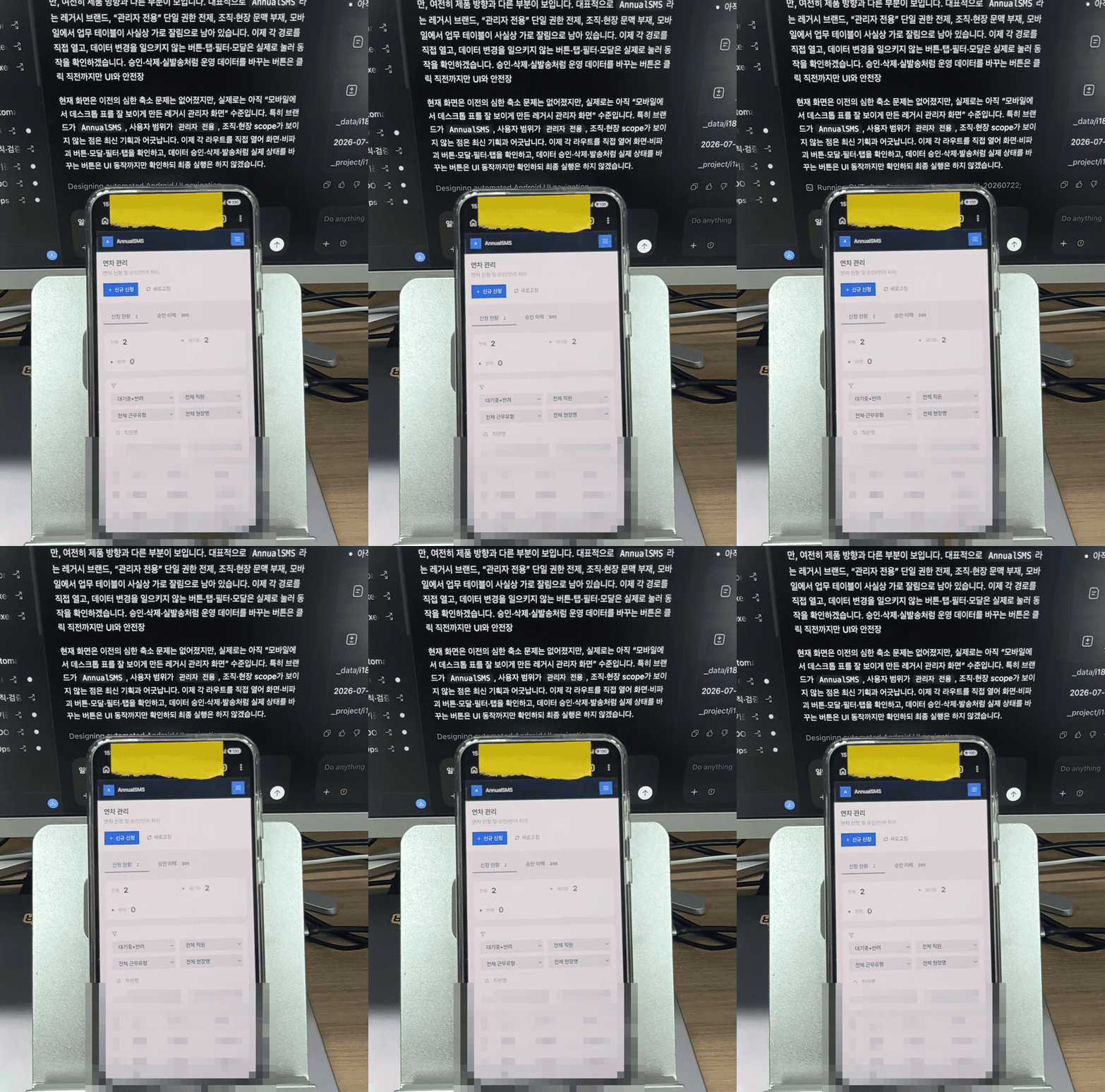
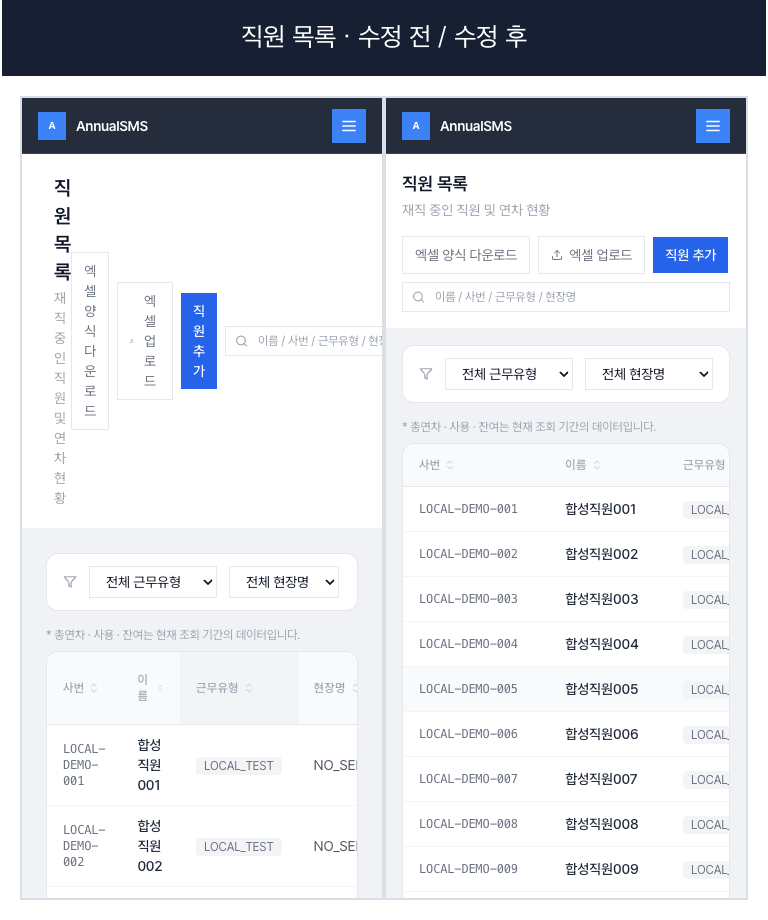
I opened the service I was building in Chrome on the phone, logged in, and moved through the menus. That was when the problems I had missed by merely imitating a small PC browser window jumped out at me. On mobile, the sidebar took up most of the screen, while cards and text were crushed vertically. The employee-list title and buttons broke one character per line, and the SMS history and leave-management filters were too compressed to tell what they were.
One screen was more powerful than an explanation that there was a problem. The four Korean characters in Employee List were falling one by one down the screen, and only icons and scraps of text remained in the filters. Defects I had missed while narrowing a PC window could not hide at all on an actual palm-sized screen.
In every comparison below, the left side is before the fix and the right side is after it.
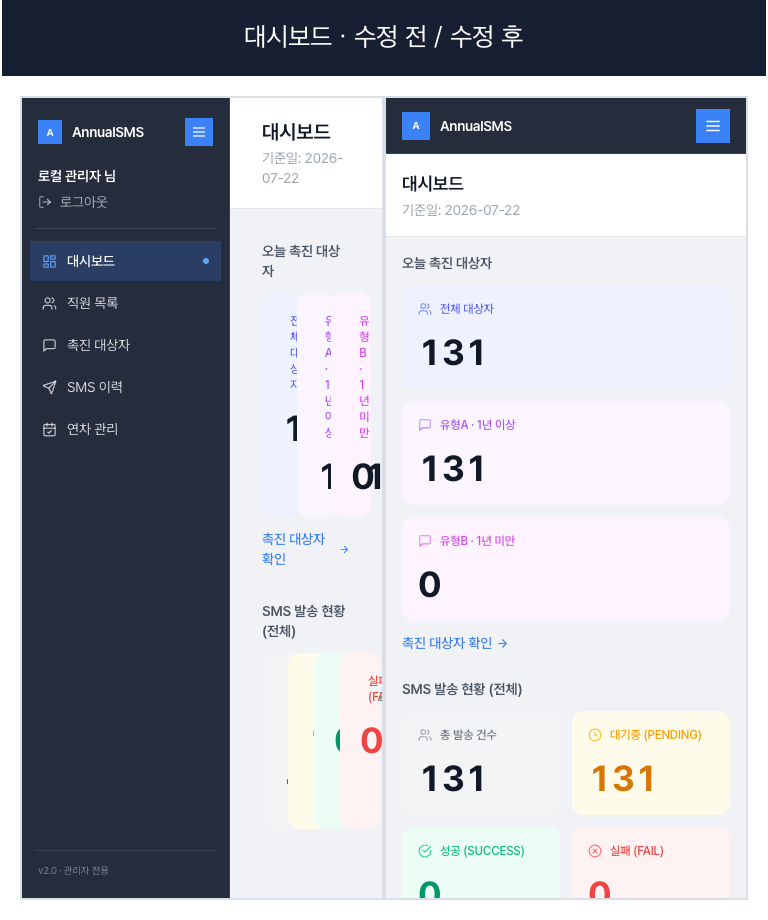
I did not stop after changing the code. I deployed the revised screen again, logged in on the same phone, opened the menus, scrolled, and checked. The employee list became readable horizontally, and wide tables were allowed to scroll as much as needed instead of being forcibly crushed.
Looking at the screen, I set the criteria: “This is unreadable,” and “Don’t crush the table; let me move across it.” AI connected those criteria to the actual layout and code changes. After deployment, the decision about whether it had really been fixed returned to my eyes.
Screens with many filters made the problem even more obvious. The cause was trying to cram every input into one row at a narrow mobile width. I rearranged the SMS history and leave-management screens around two columns and moved the date range to its own row.
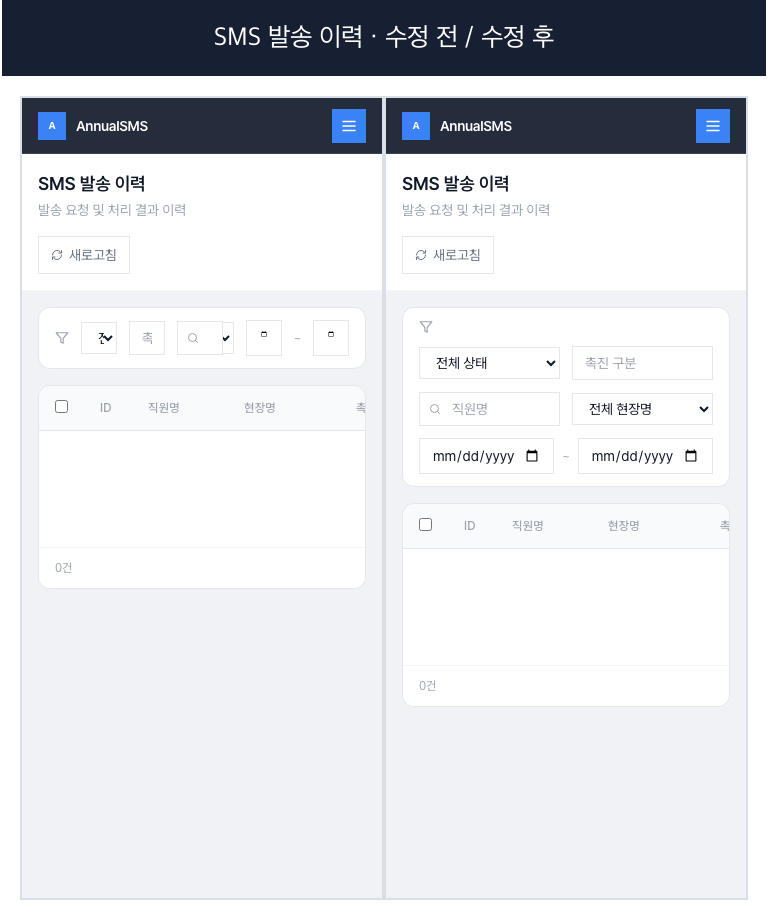
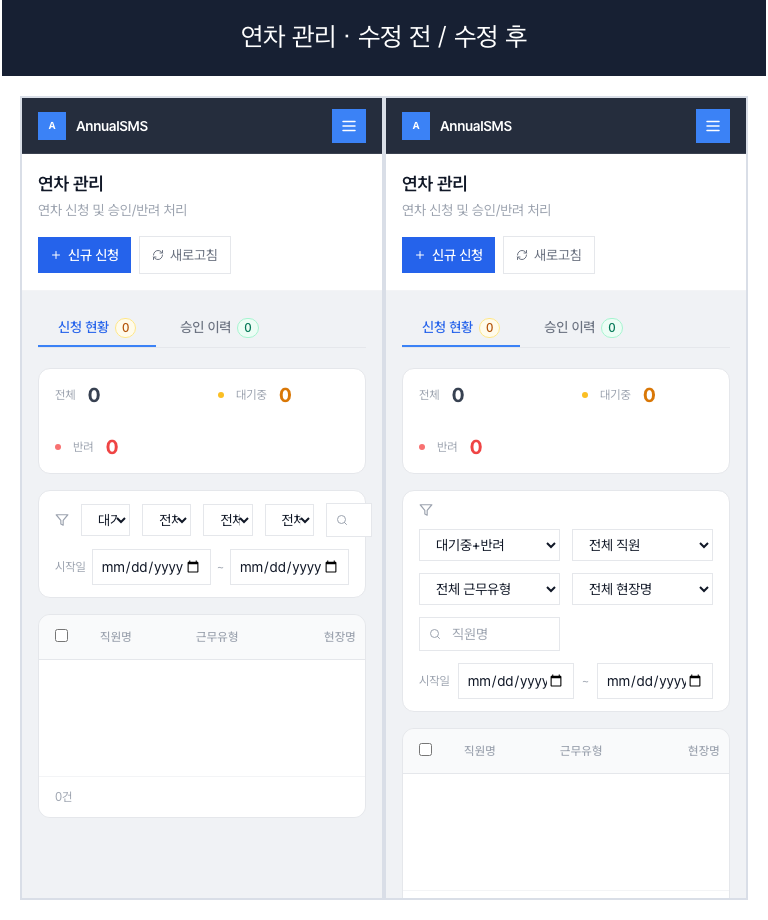
These before-and-after screens are not copied from operational data. After finding the problem on the real phone, I rendered the old and revised code again at the same mobile size using the same synthetic data. What I saw with my own eyes led to a code change, then came back around to verification on the real device.
It Looked Like a Window, but It Wasn’t an App
Fixing things while looking at the real phone screen was already fascinating. What came next was even funnier.
I wanted scrcpy to appear and disappear whenever I pressed fn+s in BetterTouchTool. Every other app worked fine, but for some reason only scrcpy did not. I captured the settings screen and showed it to AI.
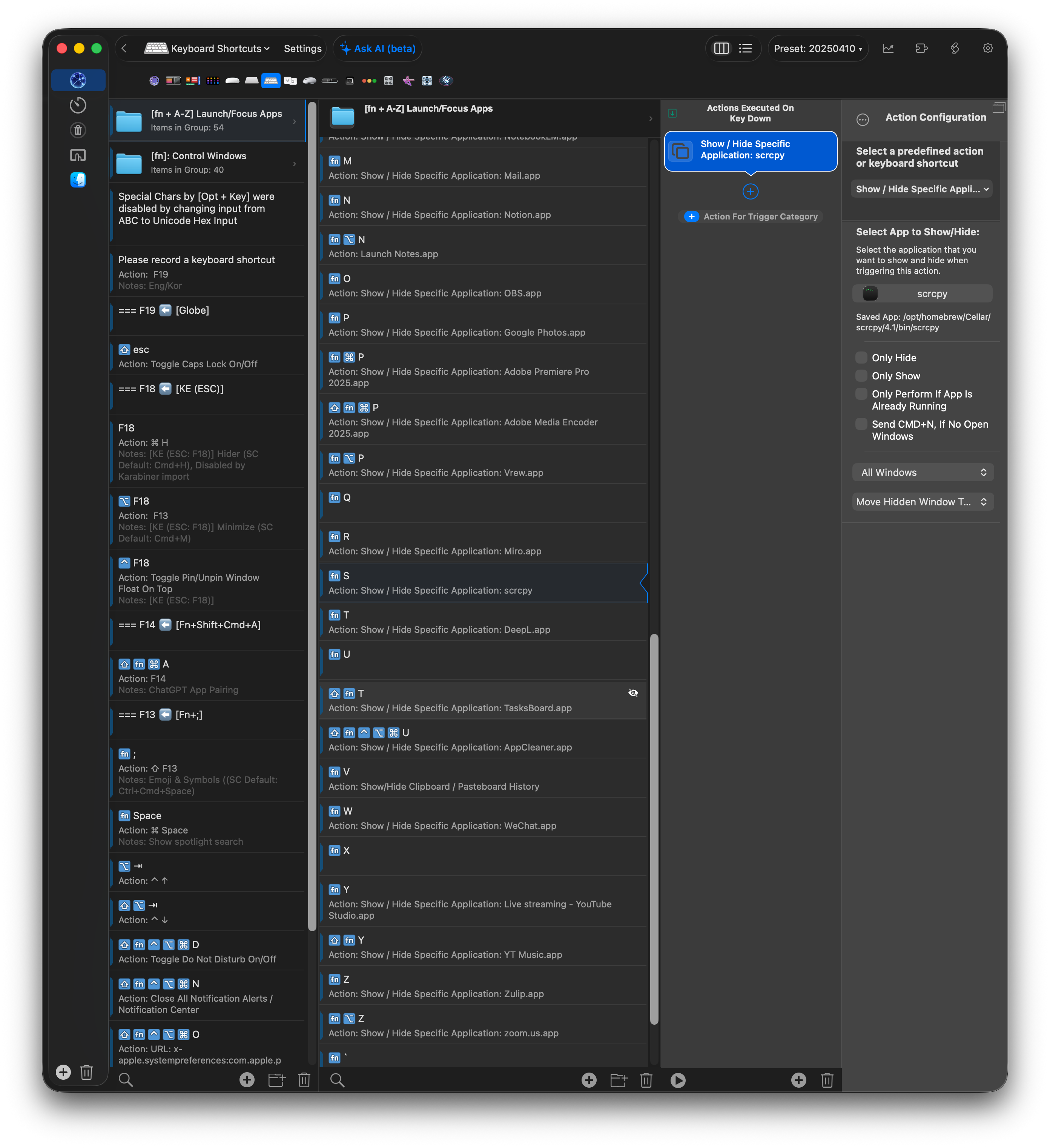
The reason was simple.
What I had selected in BetterTouchTool was not an ordinary macOS app bundle, but the scrcpy executable installed under Homebrew. It opens a window that looks like an app, but it is not the kind of ordinary .app expected by BetterTouchTool’s Show / Hide Specific Application. That was why the method that worked for other apps did not work properly for scrcpy.
It was not a phone problem. The shortcut itself was not the problem either. To my eyes it looked like any other window, but the issue was how the Mac recognized that window as a process and application.
To me, it was a window no different from any other app. AI connected the BetterTouchTool settings I showed it with the actual executable path and found why this one window would not behave like an ordinary app.
In the end, instead of an action that showed or hid a normal app, I switched to a shell script that found the scrcpy process directly and controlled whether it was running and whether its window was visible. The same fn+s now behaved exactly as I wanted.
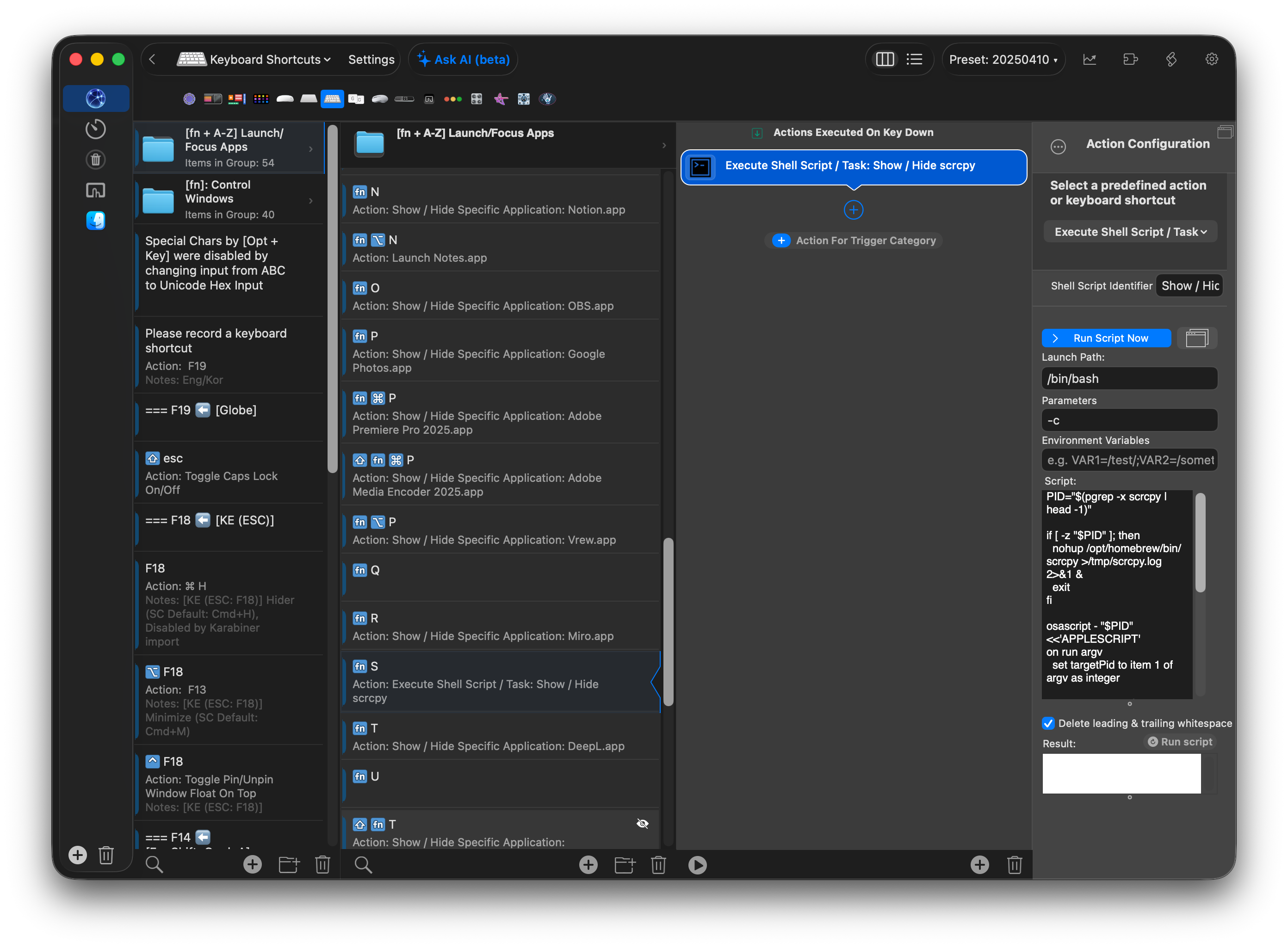
The moment I heard the explanation, I just laughed.
Wow… even this works?
I No Longer Need to Know Every Technology in Advance
Before, there would have been far too many things to search from this point on.
Docker and NAS, routers, DNS, certificates, the Reverse Proxy, Android debugging, adb and scrcpy, all the way to how macOS distinguishes windows from apps. If I had searched one at a time, they would have scattered into problems from entirely different fields.
None of them may be terribly difficult on its own. But they are fields I do not usually know in depth. When I do not even know what to search for, one small problem can easily become hours of work.
Once AI joined in, the flow changed.
I said what result I wanted. I showed the real screen. I showed the point that failed again. AI connected Docker, NAS, the router, DNS, and HTTPS with the phone, adb, scrcpy, macOS windows, and BetterTouchTool settings in one continuous flow.
In one place it looked at the NAS and browser; in another session it dug into the Android and SMS path; in another window I reviewed the results. Even when the screens split apart, my role stayed the same: set the goal, approve how far to change things, and judge whether the result was right.
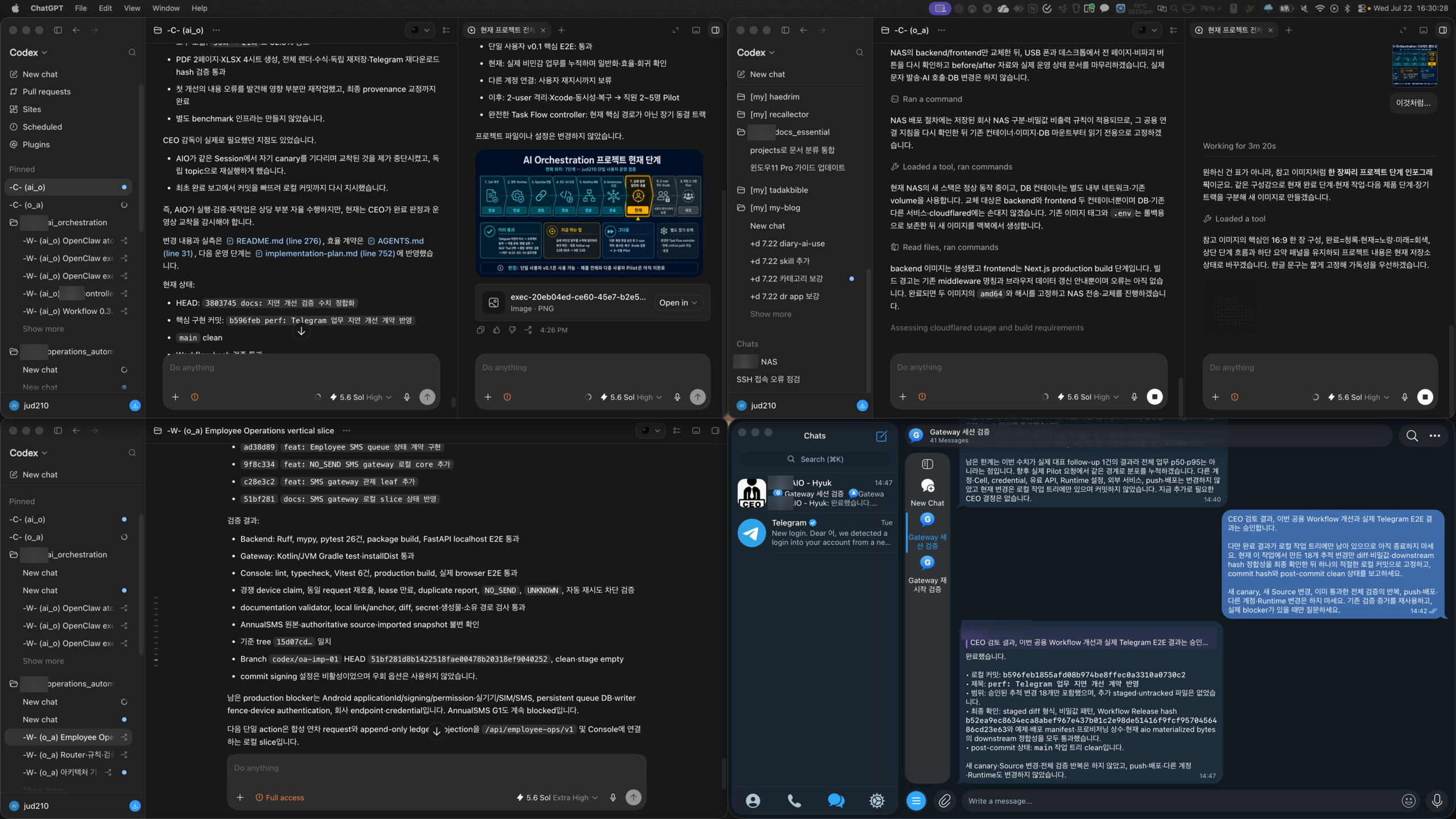
I would not have felt this way if AI had merely told me a lot of facts. That knowledge turned into terminal commands, phone taps, and settings on admin screens, then returned at the end as a change in the screen I actually use. It was not an answer. It was execution.
I had not studied all those layers in advance. Nor had I done nothing and simply thrown out an “handle it for me.” I kept watching the results, pointing out what looked wrong, and asking the next question.
I once wrote that AI literacy is ultimately the ability to instruct. Today, those words felt more real.
Giving instructions was not about writing one impressive prompt. It was describing the state I wanted, handing over the screen in front of me, and correcting the result when it differed. If I could keep doing that, I could go much deeper than expected even into fields I originally knew nothing about.
AI Expands the Reach of My Hands and Eyes
Using AI did not suddenly make me an expert in every technology.
If anything, working with it directly keeps producing moments when AI makes a strange judgment or goes much farther in a direction I never wanted. If I do not know what I want or have no standard for judging the result, no amount of work by AI will lead to a proper outcome.
But the opposite is also true.
If I set the goal, show the real state, catch the wrong direction, and keep AI moving, the story changes completely. Things I used to pass over because “this isn’t my field” become things I can touch myself. It does not stop at installing a program. I can connect a real device, see its screen, check how it behaves, put it on a server, and reshape the inconvenient parts in my own way.
So now, instead of asking only for an explanation of the result, when the screen matters I simply say, “Check it yourself. Through Computer Use.”
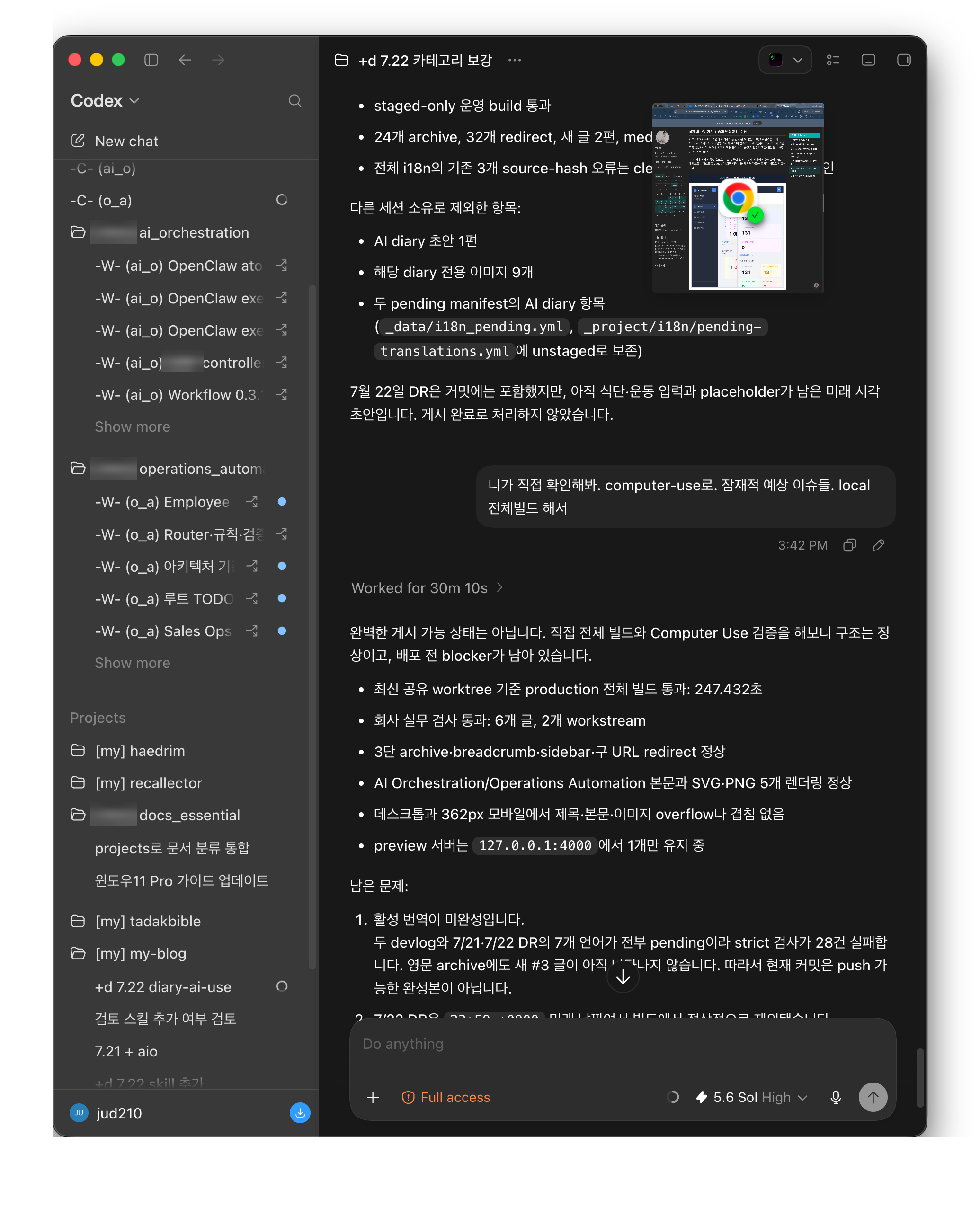
In The Development Paradigm Shift Becoming Carved Into Bone and Flesh, I wrote that the developer’s center of gravity is moving from the ability to type code by hand toward planning, design, execution, and feedback. What I did today was exactly that flow.
What I actually wanted to make came before how much code I had memorized. Then came showing AI the context, connecting the tools, and continuing to fix the result as I watched it.
Today, I really felt it.
If I know how to use AI actively, there are far more things I can do than I thought. It is not just about getting answers faster. The range of what I can see, touch, and fix myself grows wider.
Saying the possibilities are truly endless did not feel like an exaggeration.
Leave a comment