
[🛠] IT Operations #1: How I Fixed the Company Router’s ‘No Internet’ Issue (feat. Codex)
✨ GPT-5.6 Sol’s Summary
A record of connecting a phone to the second-floor router and a Mac browser to the company router so Codex could diagnose the real equipment directly, then learning networking in real time while recovering the outage.
The Wi-Fi on the second floor at work was acting strangely today. The signal was excellent, but there was no Internet access. The router was on and the phone was connected, yet the screen kept saying No Internet connection.
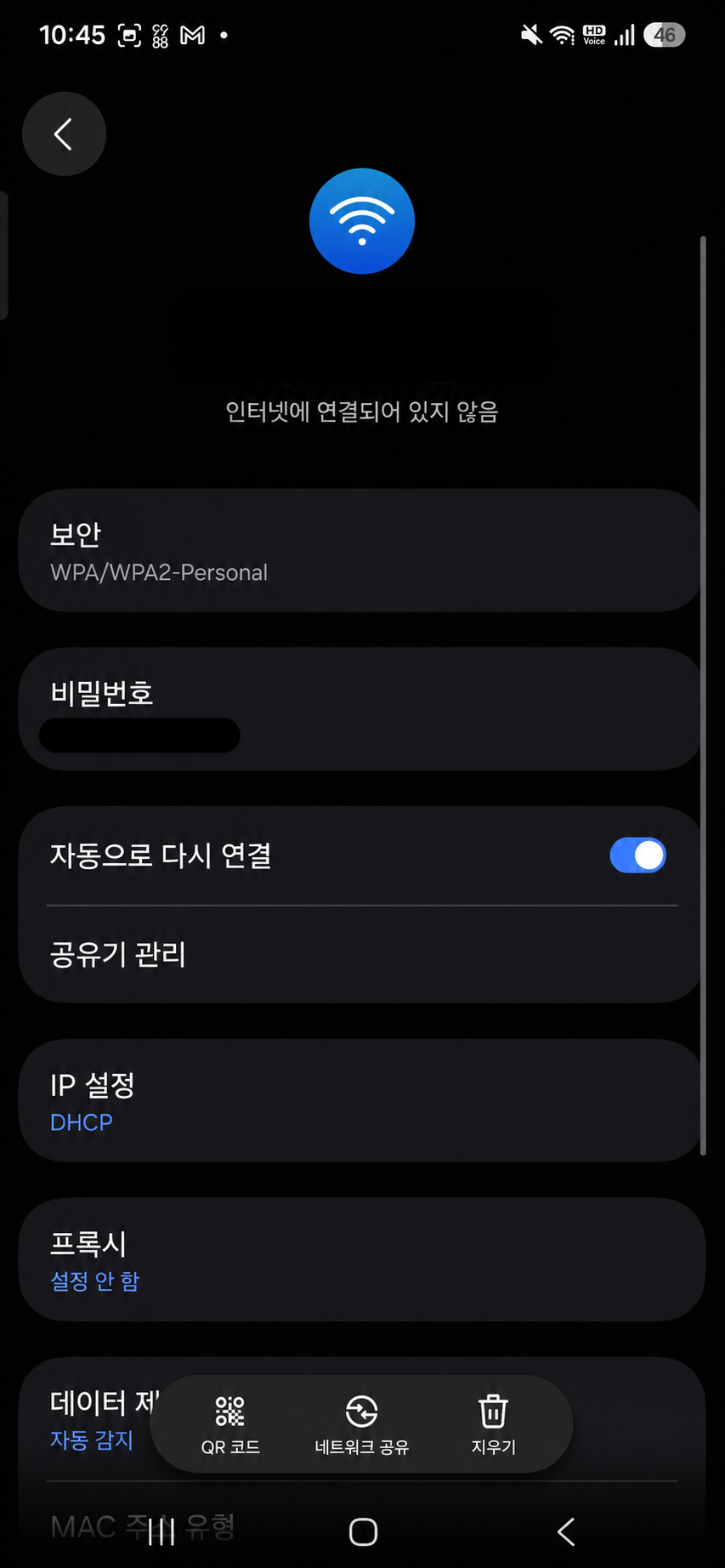
The router in front of me had power, and its LAN indicator was active. Nothing on the outside revealed where the connection was blocked.
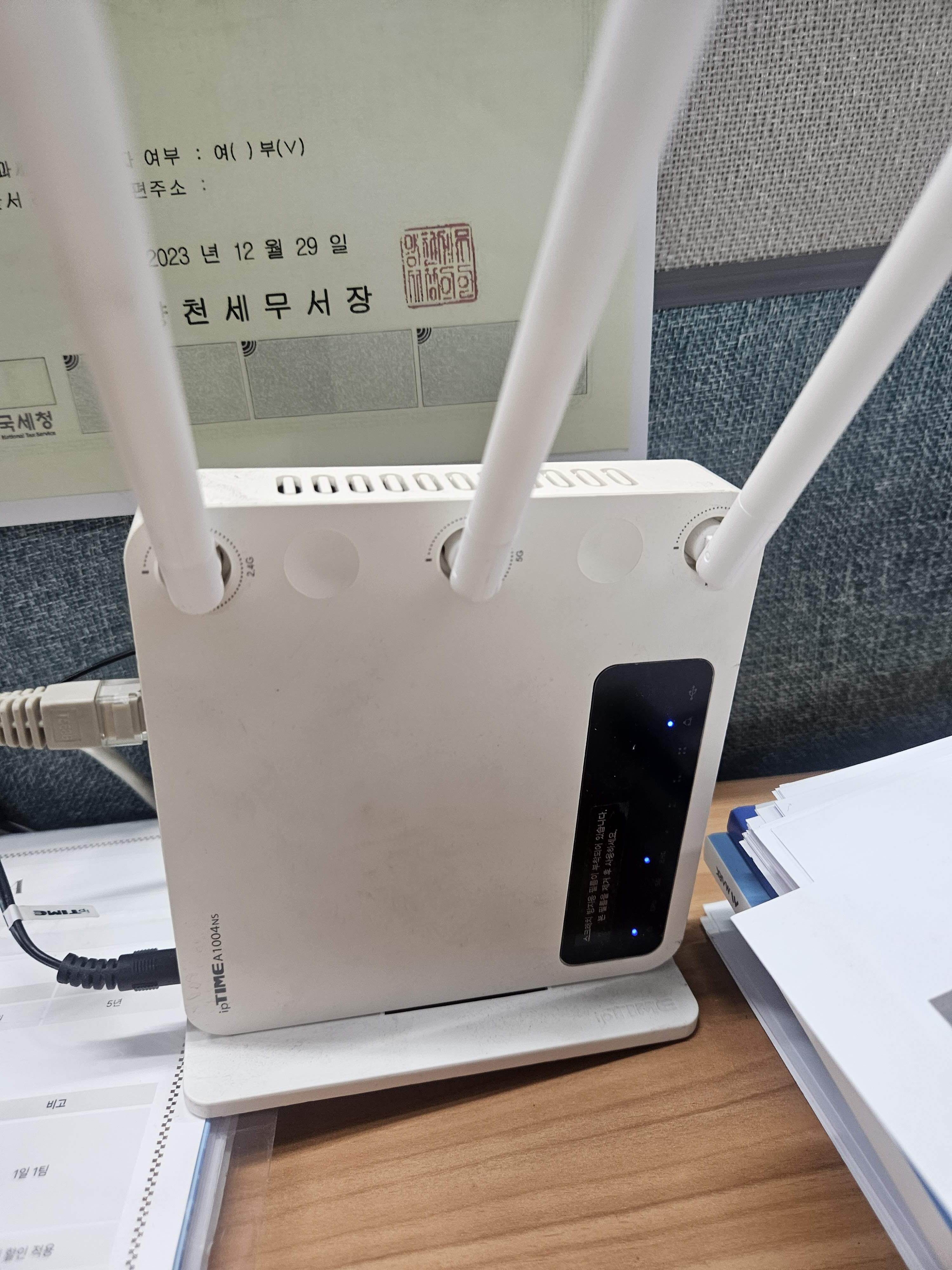
In the past, I would have power-cycled the router several times, checked whether the Ethernet cable was plugged into the wrong port, and then started searching if that did not work. But two days earlier, while writing Knowing how to actively use AI makes the possibilities feel endless, I learned a new way of working.
I just needed to connect the real equipment and screens to AI.
This time, I put that method to use immediately. I connected the phone to the Mac over USB and opened ADB. The phone joined the malfunctioning second-floor Wi-Fi. In Chrome on the phone, I opened and signed in to the second-floor router’s administration screen. In Chrome on the Mac, I opened and signed in to the company router’s administration screen. Then I told Codex what to do.
The point was not that I had personally figured out every router setting. I first set up the physical equipment, command-execution environment, and signed-in administration screens so Codex could actually work.
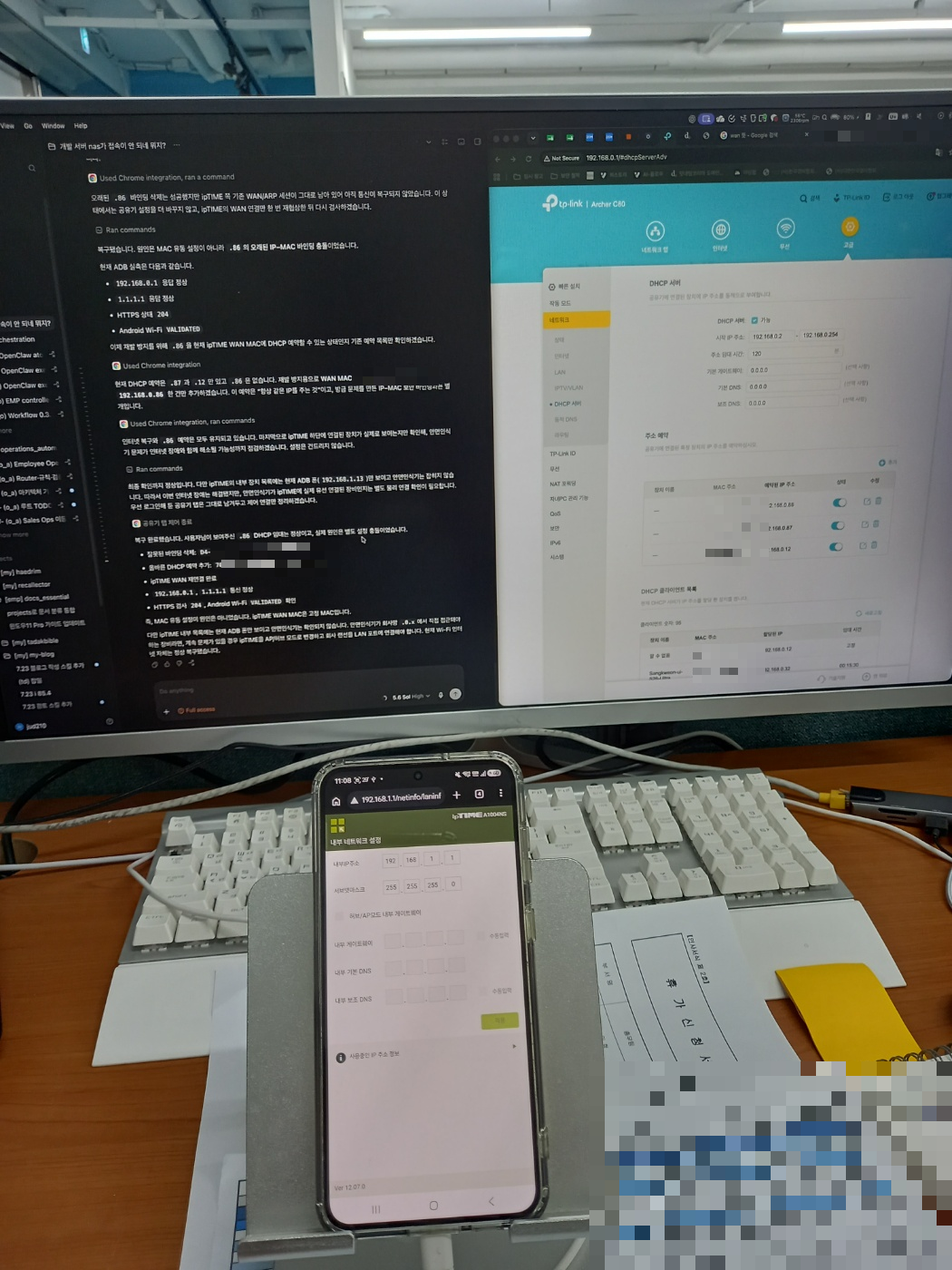
Start by understanding the current situation. Changing things carelessly could cause problems, so try to resolve it with commands first whenever possible.
Codex was no longer just a chatbot that explained things. It could read the phone’s network state through commands, move between the two administration screens I had signed into using Computer Use, and inspect and change the actual settings.
Connecting the phone and browsers to show both networks at once
At first, I did not even know why 192.168.0.1 would not open. The checks showed that the two routers had different roles.
Company router 192.168.0.1
  └─ Second-floor ipTIME WAN 192.168.0.86
       └─ Second-floor Wi-Fi / LAN 192.168.1.x
            └─ Second-floor router administration screen 192.168.1.1
Because the Mac was connected to the company network, it could open the company router at 192.168.0.1. The phone on the second-floor Wi-Fi, meanwhile, received a 192.168.1.x address and used 192.168.1.1 as its gateway. That was why I kept the company router open in the Mac browser and the second-floor router open in the phone browser.
I did more than show Codex the screens. With ADB connected, Codex read the phone’s assigned IP and routes, then explicitly selected the second-floor Wi-Fi interface to test communication. Because the phone could still complete Internet requests over mobile data after Wi-Fi failed, an ordinary ping could produce a misleading result.
adb shell "ping -I wlan0 -c 3 -W 2 192.168.1.1"
adb shell "ping -I wlan0 -c 3 -W 2 192.168.0.1"
adb shell "ping -I wlan0 -c 3 -W 2 1.1.1.1"

adb shell "curl --interface wlan0 -k -sS -o /dev/null \
  -w '%{http_code}' --connect-timeout 5 --max-time 10 \
  https://www.google.com/generate_204"
The results were clear.
- The phone could reach the second-floor router at
192.168.1.1. - It could not reach the company router at
192.168.0.1. - It could not reach the external IP
1.1.1.1either. - The HTTPS check ended with
000.
I watched the entire process from beside it. A working Wi-Fi signal only meant that the phone and second-floor router were connected. The problem was in the next segment, where the second-floor router’s WAN connected to the company network.
I did not first open a networking book and study LAN, WAN, gateways, and double NAT in order. Watching Codex divide the real outage into individual tests made me immediately understand why both 192.168.0.1 and 192.168.1.1 existed.
Communication could still be blocked with a valid DHCP lease
The development NAS and data NAS addresses had also changed that day. I found their current addresses and MAC addresses in the company router’s DHCP client list and added reservations so both NAS devices would receive the same addresses next time. I also updated the HTTP and HTTPS port forwarding used by the leave automation previously moved to the NAS to point to the new address.
Along the way, I learned what DHCP was at the exact moment I needed it.
- A normal DHCP assignment leases an available IP address to a device.
- A DHCP reservation gives the same IP address to a specific MAC address whenever it connects.
- Assigning a static IP on the device itself is different from creating a DHCP reservation on the router.
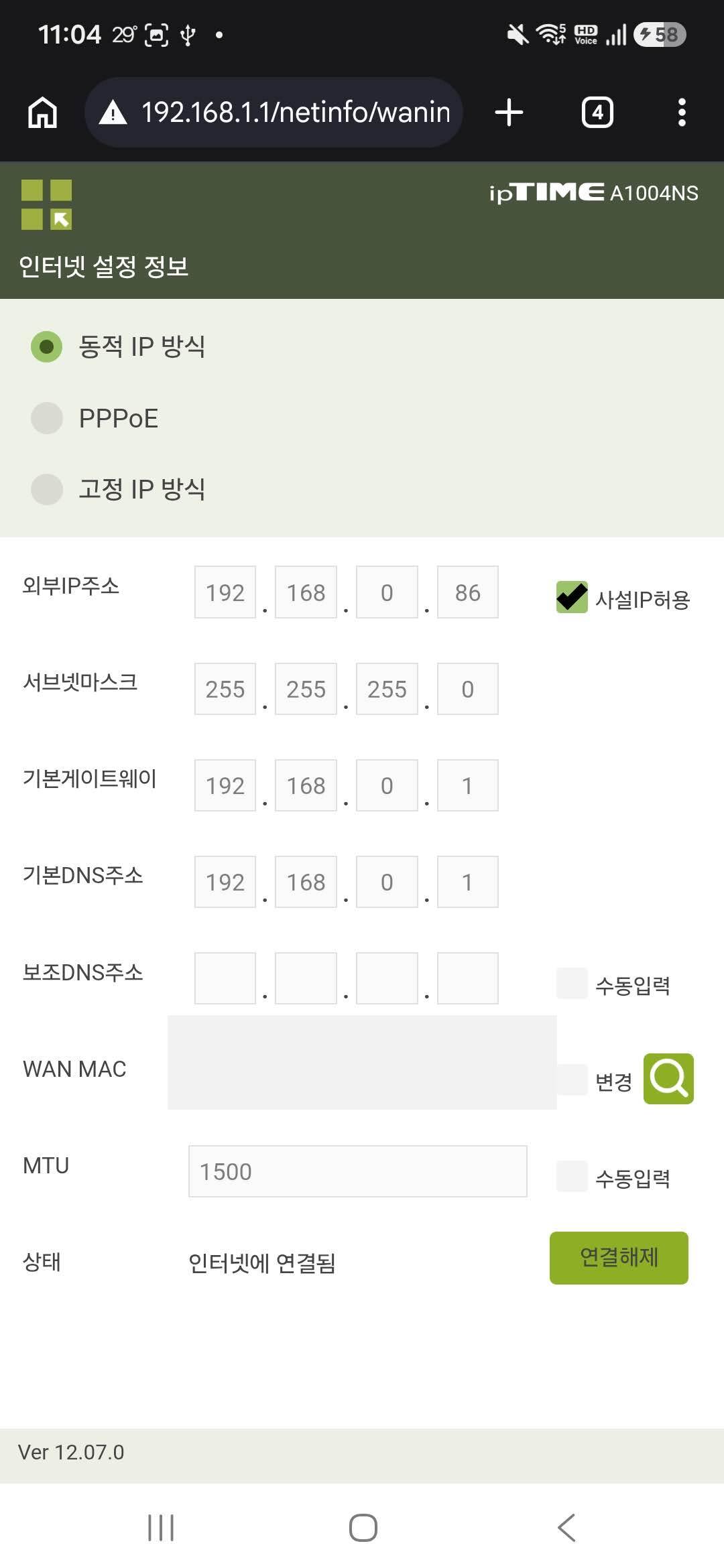
But the second-floor router problem could not be explained by DHCP reservations alone. The ipTIME administration screen showed its external IP as 192.168.0.86 and its status as Connected to the Internet. The company router also had a record showing that the same IP was currently leased to the ipTIME router.
At one point, Codex looked only at the current page of the DHCP list and incorrectly concluded that .86 was missing. There were more than 90 clients, so the list spanned multiple pages, and I had already seen the relevant row on another page.
It’s there?
When I showed the MAC address and the .86 lease row again, the direction of the investigation changed. The router had received an IP address; we now had to find the setting that blocked communication after that assignment.
Disconnecting and reconnecting the WAN produced the same result. Access control was enabled, but its blacklist was empty. Then the cause appeared on the IP&MAC Binding screen. .86 was bound not to the current ipTIME WAN MAC address, but to the MAC address of an old desktop computer.
DHCP server: currently leases 192.168.0.86 to the ipTIME router
IP&MAC binding: records 192.168.0.86 as belonging to the old PC MAC address
DHCP had given the current device an address, but the security setting believed that address belonged to a different device. The ipTIME router therefore appeared to have an IP address on its administration screen, yet could not communicate with the company router.
Receiving an IP address and being able to communicate with that IP address were not the same thing. Following the outage made that distinction feel natural as well.
Removing one stale binding and verifying again on the actual Wi-Fi
I did not turn off the router’s entire security feature. I deleted only the one stale IP–MAC binding for .86, then renegotiated the ipTIME router’s WAN connection.
The result changed immediately.
192.168.0.1  ping succeeded
1.1.1.1      ping succeeded
HTTPS        204
Android Wi-Fi VALIDATED
After recovery, I added a DHCP reservation so the current ipTIME WAN MAC would always receive .86. A DHCP reservation keeps giving the current device the same address, while an IP–MAC binding enforces which device may use that address. This outage occurred because the two records pointed to different devices.
The Internet connection was restored, but the double-NAT structure in which the second-floor ipTIME router creates a separate 192.168.1.x network beneath the company network remains. Switching it to AP or hub mode would require changing not only DHCP and the administration IP, but also whether the physical Ethernet cable is connected to the WAN or LAN port. A careless remote change could make both the administration screen and all second-floor devices unreachable, so today I fixed only the confirmed cause of the Internet outage.
Learning networking by watching the repair, not before attempting it
The core of what I did today was not studying all of networking in advance and then fixing the router.
When the problem occurred, I immediately pulled out the working method I had discovered on July 22. I first handled the physical connections and sign-ins that only I could do. I connected the phone to the second-floor Wi-Fi and then to the Mac over USB. I opened both router administration screens. I set the scope of change and pointed out the DHCP row when Codex missed it.
From there, Codex could act. It used commands to determine how far communication reached, read both administration screens through Computer Use, eliminated possible causes one by one, changed only the one necessary item, and verified the result again on the same phone.
I did not study every kind of networking knowledge separately before entering the field. The concepts I needed in the moment arrived attached to real screens and command results. DHCP, MAC address, gateway, LAN and WAN, IP–MAC binding, and double NAT became tools for explaining why the outage in front of me had happened, not terms to memorize.
AI was not always right from the beginning either. It made incorrect judgments, such as missing .86. But when I looked at the actual screen and pointed out what seemed wrong, Codex moved directly to the next check. I did not need to know every command and settings menu in advance, but I still had to notice when a result did not make sense and reset the goal.
Two days earlier, I first realized that connecting a browser and phone to AI could expand the range of things I could handle directly. Today, I actively applied that realization to a real outage at work.
Studying an unfamiliar field for weeks and applying it someday is not the only way. There is also a way to solve a real problem together with AI, learn only what is needed at that moment, and produce a result immediately.
Leave a comment