
[🧑💻] Study - Flutter App Development Basics Lecture 14/44: Flutter Environment Setup, Core Widgets, Dart Basic Syntax
✨ Gemini 2.5 Pro’s Summary
Flutter App Development Basics Course DevStory - Inflearn DevStory It is okay even if you have no development knowledge! Flutter app development basics that beginners can do 🏃♂️Flutter app development basics even absolute beginners can learn[photo]If you learn app development, you can release your own app service, something you only imagined before, to the whole world. Actually
- Original: http://blog.naver.com/hyeogikarp/223882864462
- Naver publish time: 2025/05/30 11:30 KST
- Original category: Development Study
Original
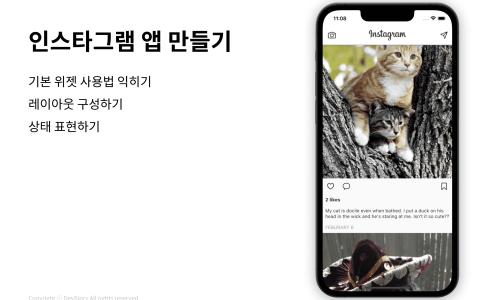
| Flutter App Development Basics Course | DevStory - Inflearn |
| DevStory | It is okay even if you have no development knowledge! Flutter app development basics that beginners can do 🏃♂️Flutter app development basics even absolute beginners can learn[photo]If you learn app development, you can release your own app service, something you only imagined before, to the whole world. Actually, making an app |
www.inflearn.com
- What is Flutter?
-
Cross-platform framework: Developed by Google, and with one codebase it is possible to develop Android, iOS, Web, and Desktop applications.
-
Uses the Dart language: UI is written as code.
- Core concept: Everything is a Widget
-
UI composition unit: You compose the screen by assembling widgets.
-
Widget Tree: A hierarchical structure of widgets, composed of parent-child relationships.
-
Key? key and super(key: key): In a widget constructor, Key is used to preserve the widget’s state and update it efficiently when the widget tree is rebuilt. At this stage, it is enough to understand that this concept exists.
-
BuildContext context: An important object that represents the current widget’s location in the widget tree and lets it access data or themes from upper widgets. It is used in many places, such as Navigator.pop(context).
-
Major widget categories:
-
StatelessWidget: A static widget with no state.
-
StatefulWidget: A dynamic widget that can be redrawn according to state changes. (code example omitted)
-
StatefulWidget: A dynamic widget that can be redrawn according to state changes. (code example omitted)
- Basic app structure and major widgets
-
main() function & runApp() & MaterialApp & Scaffold:
-
MaterialApp’s home: Specifies the first screen of the application. (Example: home: HomePage())
-
MaterialApp’s home: Specifies the first screen of the application. (Example: home: HomePage())
-
AppBar detailed properties:
-
Layout widgets:
-
Column & Row:
-
Padding: Adds margin/spacing around a child widget.
-
Padding: Adds margin/spacing around a child widget.
-
Container: A rectangular widget that can have various styling(size, color, margin, border, etc.).
-
Container: A rectangular widget that can have various styling(size, color, margin, border, etc.).
-
Expanded: Expands a child widget of Row or Column to fill the remaining space.
-
Expanded: Expands a child widget of Row or Column to fill the remaining space.
-
SingleChildScrollView: Allows scrolling when the child widget’s contents go outside the screen.
-
SingleChildScrollView: Allows scrolling when the child widget’s contents go outside the screen.
-
ListView.builder: Creates a scrollable list that efficiently displays many items. It creates only the items visible on screen.
-
ListView.builder: Creates a scrollable list that efficiently displays many items. It creates only the items visible on screen.
-
Stack: Allows widgets to be placed on top of each other(Z-axis).
-
Stack: Allows widgets to be placed on top of each other(Z-axis).
-
AspectRatio: Fixes the width-height ratio of a child widget.
-
AspectRatio: Fixes the width-height ratio of a child widget.
-
double.infinity: Used for width or height properties of Container, etc., making it fill the maximum size allowed by the parent widget.
-
double.infinity: Used for width or height properties of Container, etc., making it fill the maximum size allowed by the parent widget.
-
SizedBox: Used to create empty space of a specific size or explicitly specify the size of a child widget.
-
SizedBox: Used to create empty space of a specific size or explicitly specify the size of a child widget.
-
Basic UI widgets:
-
Text & TextStyle: Displays text and specifies style.
-
Image.network: Loads and displays an image from a network URL.
-
Image.network: Loads and displays an image from a network URL.
-
fit: BoxFit.cover: Makes the image fill the specified space while maintaining its aspect ratio. (If the image is larger than the space, it may be cropped)Icon: Displays a Material Design icon.
-
fit: BoxFit.cover: Makes the image fill the specified space while maintaining its aspect ratio. (If the image is larger than the space, it may be cropped)
-
fit: BoxFit.cover: Makes the image fill the specified space while maintaining its aspect ratio. (If the image is larger than the space, it may be cropped)
-
Icon: Displays a Material Design icon.
-
TextField & InputDecoration details: Receives text input from the user.
-
TextField & InputDecoration details: Receives text input from the user.
-
ElevatedButton, TextButton, IconButton: Various types of button widgets.
-
ElevatedButton, TextButton, IconButton: Various types of button widgets.
-
Card: Creates a Material Design card-shaped UI. It has a slight shadow and rounded corners.
-
Card: Creates a Material Design card-shaped UI. It has a slight shadow and rounded corners.
-
Divider: Creates a visual dividing line.
-
Divider: Creates a visual dividing line.
-
CircleAvatar: Mainly used to display circular images such as user profile images.
-
CircleAvatar: Mainly used to display circular images such as user profile images.
-
Colors.black.withOpacity(0.5): Applies opacity to a color. 0.0(fully transparent) ~ 1.0(fully opaque).
-
Colors.black.withOpacity(0.5): Applies opacity to a color. 0.0(fully transparent) ~ 1.0(fully opaque).
-
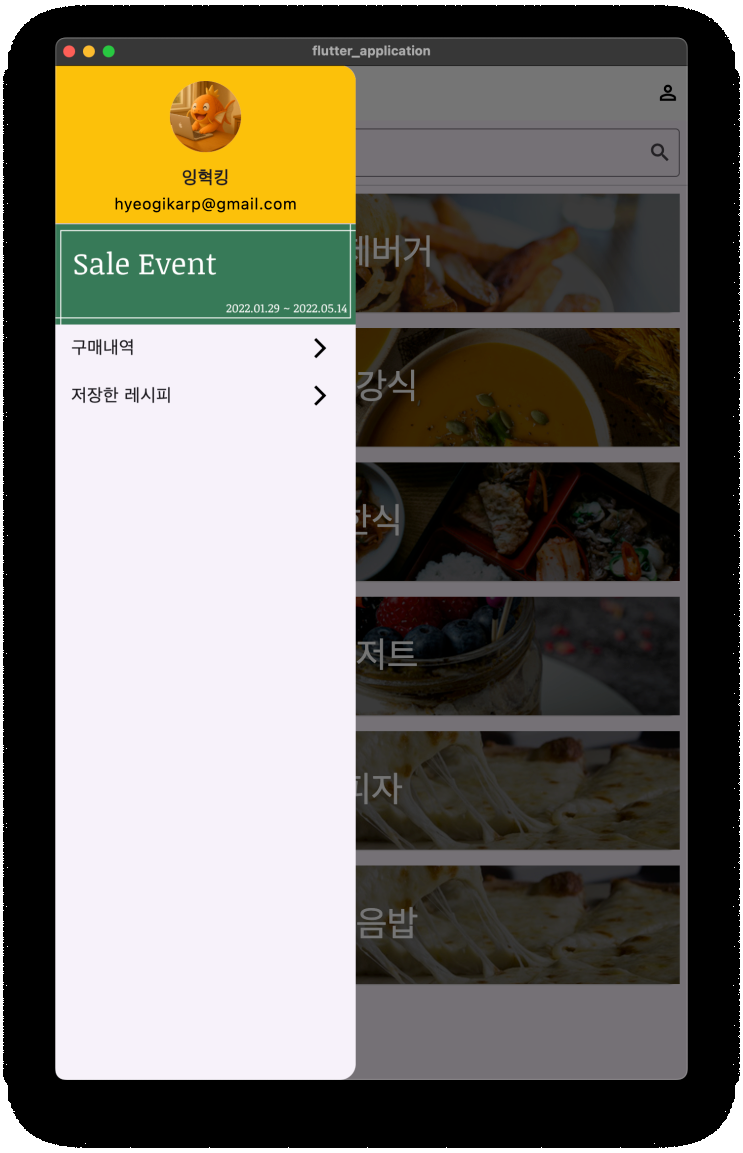
Drawer and related widgets:
-
Drawer: Assigned to Scaffold’s drawer property, a panel that slides out from one side of the screen.
-
DrawerHeader: A widget used to decorate the top area of a Drawer.
-
ListTile: Frequently used to compose each item inside a Drawer. It has properties such as leading, title, trailing, and onTap.
-
ListTile: Frequently used to compose each item inside a Drawer. It has properties such as leading, title, trailing, and onTap.
-
PageView: A widget that lets you view multiple pages(screens) by scrolling left and right. (Example: event banner)
- Navigation basics
- Navigator.pop(context): Used to remove the current screen(route) from the stack and return to the previous screen. Useful when closing a Drawer or dialog.
- Handling data(simple example)
- List<Map<String, dynamic»: Composing data used in ListView.builder, etc., with Dart lists and maps is common. Each Map contains one item’s information, and values are accessed through String keys.
- Project structure and development environment
-
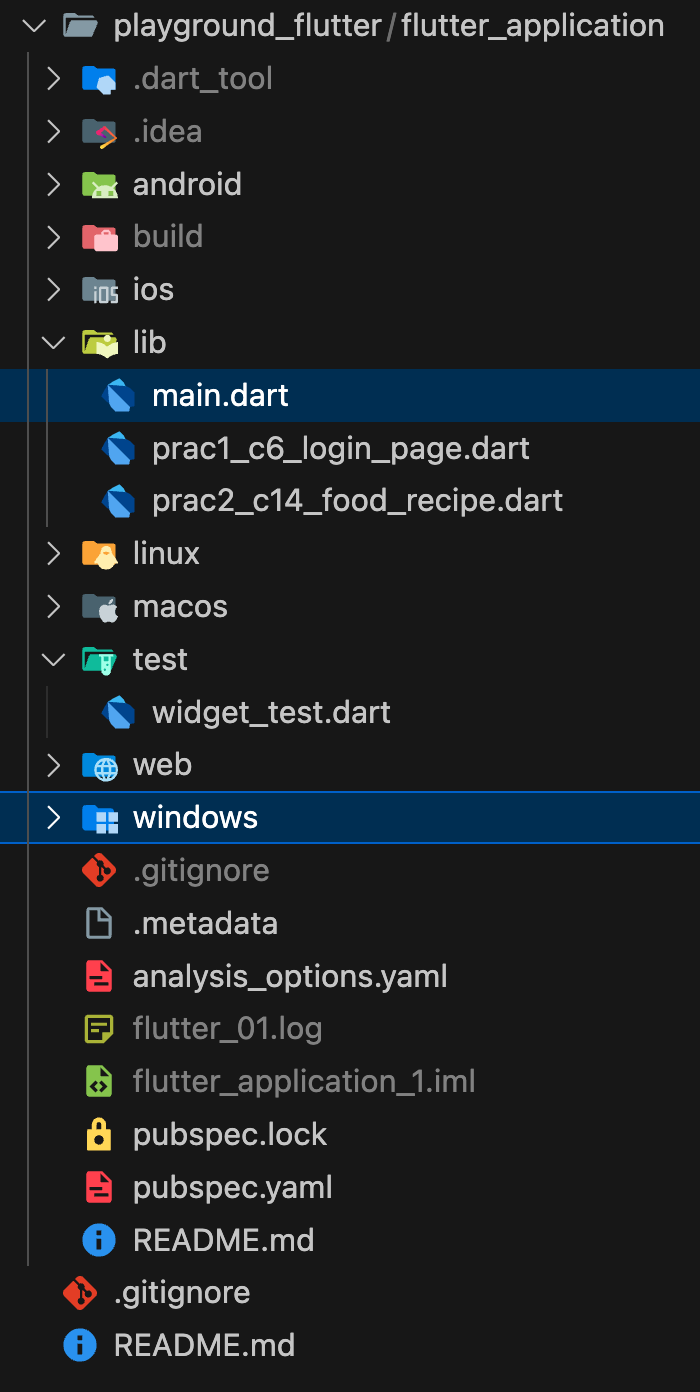
lib folder: Mainly where Dart code is written. main.dart is the default starting file.
-
pubspec.yaml file: A file for setting project metadata, dependency(library/package) management, SDK version, etc.
-
VSCode: Used as the main development tool.
-
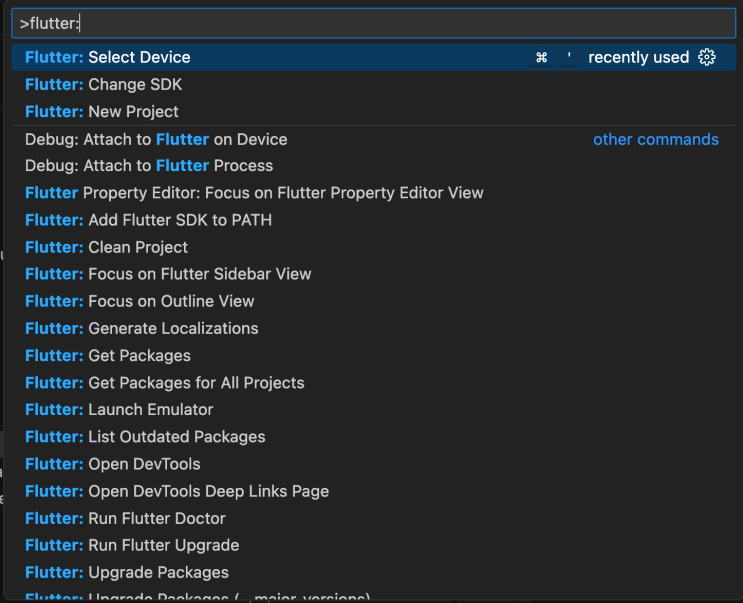
Command Palette (Ctrl+Shift+P / Cmd+Shift+P): Runs various Flutter commands such as Flutter: New Project and Flutter: Launch Emulator.
-
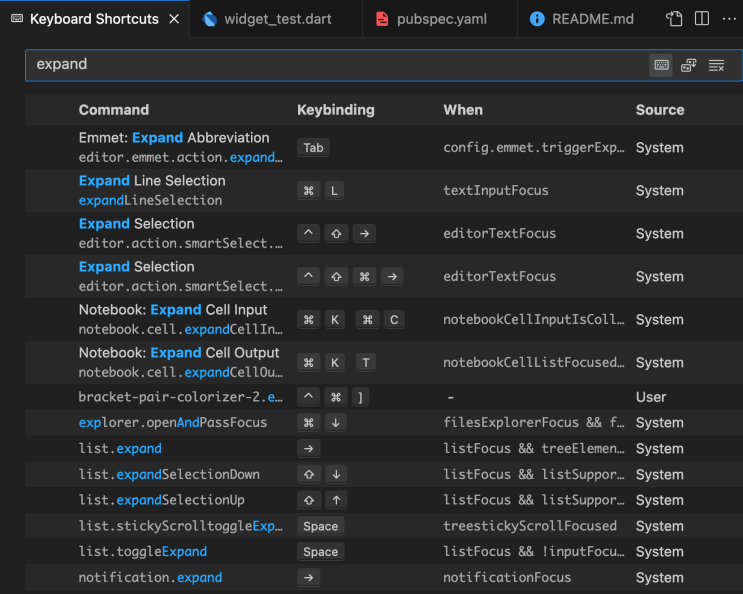
Useful shortcuts: It is essential to learn useful shortcuts such as autocomplete(Ctrl+Space/Option+Esc), refactor(Ctrl+Shift+R), parameter hints(Ctrl+Option), etc.! (for productivity improvement)
-
Later, I plan to make many simple posts centered on VSCode shortcuts.
-
ex) How to turn on Presentation Mode in VSCode
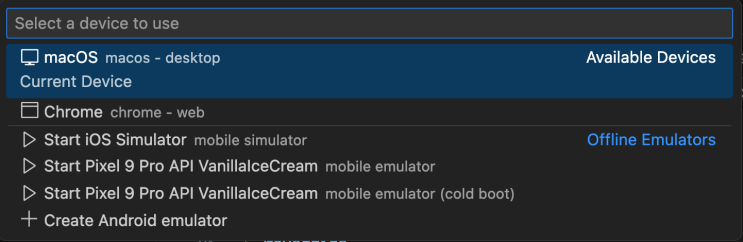
- Emulator: A virtual mobile device, used to test apps without a real device.
-
Hot Reload: Quickly reflects code changes on screen while mostly preserving the app state. (lightning-shaped icon)
-
Hot Restart: Resets app state and restarts the app. (circle-shaped icon)

-
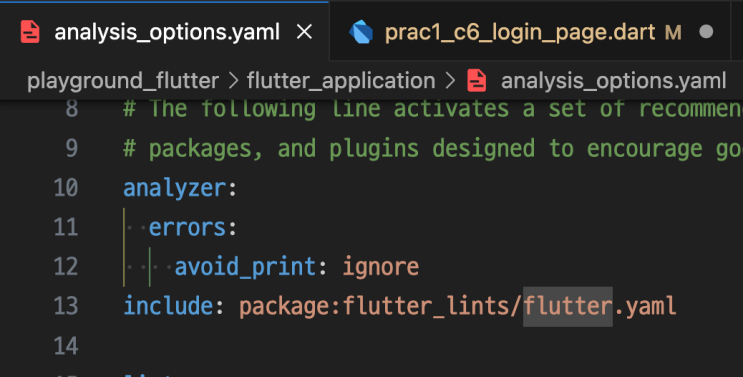
analysis_options.yaml: A file that sets Dart code analysis rules. (Example: enabling/disabling specific lint rules)
-
For example, if you try to use the print function to output text to the Debug Console, it makes a fuss that you should not use it in production.
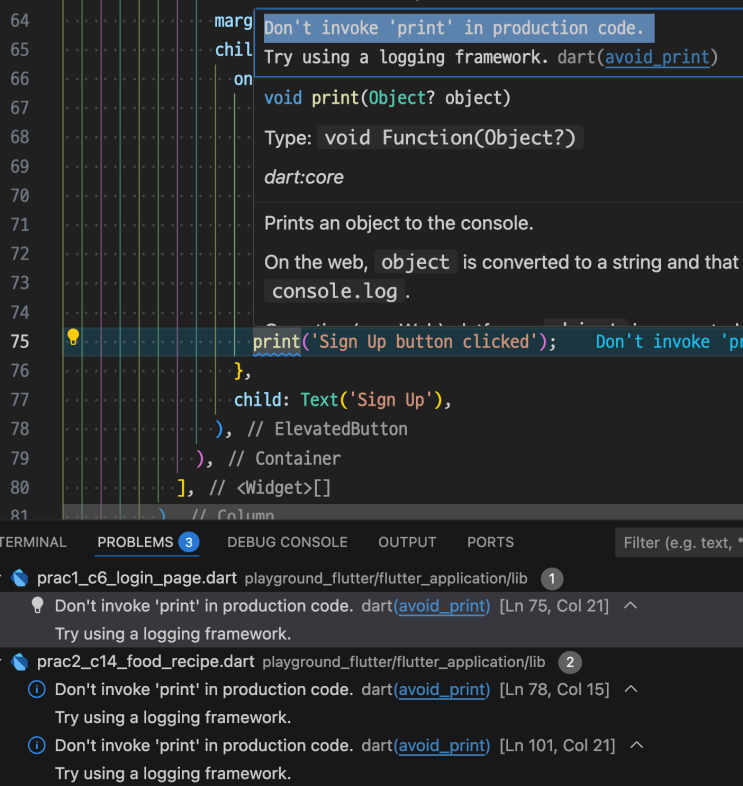
- Since that can be removed automatically during production, let us remove ‘avoid_print’ from the lint rules. Solution 1. Write an ignore_for_file comment at the top of the relevant dart file.

-
Since that can be removed automatically during production, let us remove ‘avoid_print’ from the lint rules.
-
Solution 1. Write an ignore_for_file comment at the top of the relevant dart file.
-
Solution 2. Ignore it in analysis_options.yaml at the project root.
-
Solution 2. Ignore it in analysis_options.yaml at the project root.
-
Solution 2. Ignore it in analysis_options.yaml at the project root.
- How to study Flutter
-
Widget Catalog & Widget of the week: Learn various widgets through Flutter official docs’ widget catalog and the ‘Widget of the week’ series.
-
Use communities: Ask and answer questions in Flutter-related communities(online forums, open chats, etc.) and grow together.
-
Learn Dart syntax: Flutter uses the Dart language, so understanding Dart syntax sufficiently is important.
💭 Diary
I have already used C, C++, Java, Javascript, Python, … countless languages, and have also used various frameworks/tools such as Spring, Vue.js, Django, and FlutterFlow. Even so, I wondered if there were basic concepts I might be missing, so I started listening from a Flutter basics course.
I thought these were concepts I already knew and tried to skip through quickly, but wow, I guess I had really stepped away from development for too long. Maybe my brain muscles had stiffened; I could not quickly picture in my head how I should write the code.
Now it is an era where, in VSCode, I can efficiently code while getting help from AI such as Inline Chat(Gemini 2.5 Pro) or Code Recommendation(GitHub Copilot), asking questions quickly, finding answers, and using autocomplete. So I expect I will be able to restore my coding brain muscles faster.
There is a long way to go! Let’s gooo!
Leave a comment